Tabellum for desktop · Chapter 3
Browsing and editing data
3.1 The schema tree#
Open a connection in the sidebar to see its schemas. Each schema groups its tables, views, functions, sequences and enum types; Users & roles lists the logins.
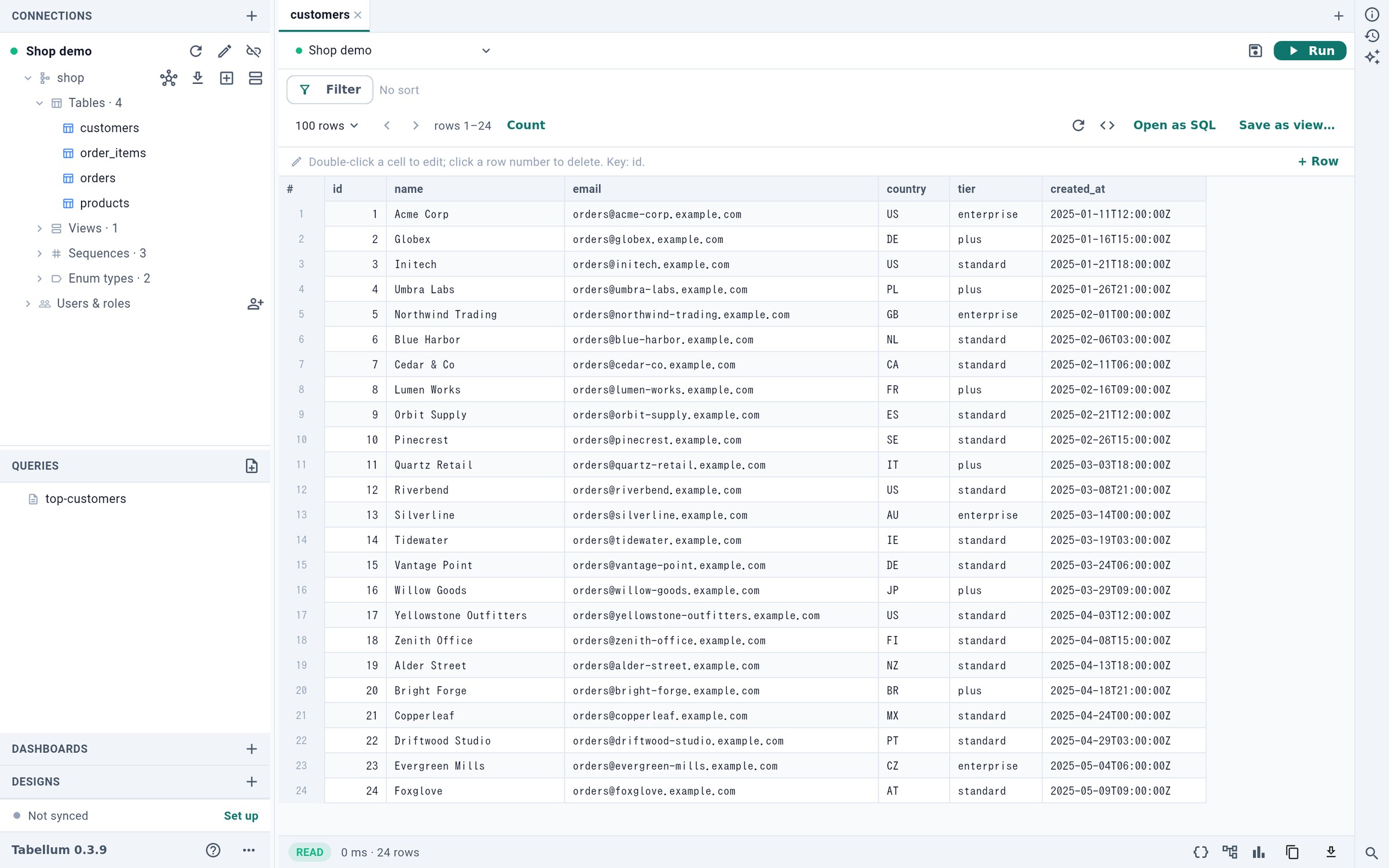
- Add a connection
- Read the schema again
- Edit the connection
- The schema as a diagram
- Saved queries
- 1 adds a connection, 2 reads the schema again after someone changed it, 3 edits the connection.
- 4 draws the schema as a diagram (see Section 6.1).
- Saved queries 5 are files in
queries/; a click opens one in a tab.
A right-click (or a long press) on an object opens its menu: export, import into a table, design, edit, and more.
3.2 A table’s rows#
A click on a table opens its rows in a tab, 100 at a time. Use the arrows to page, and click a column header to sort by it. Filter adds a condition; the value is passed to the database as a parameter, never pasted into the SQL.
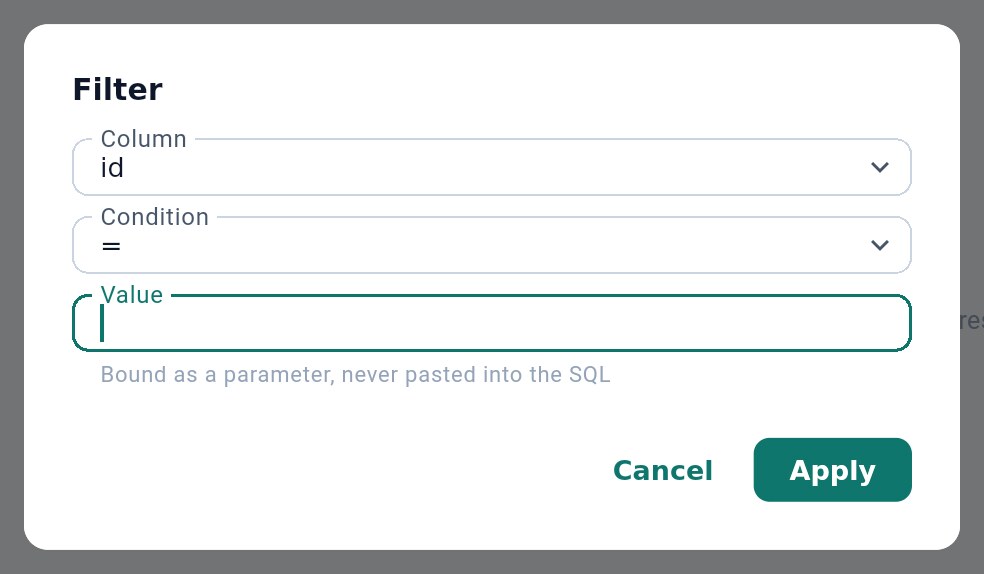
The status bar under the rows shows how long the read took and how many rows came back. Its buttons switch the result between a table, JSON and a chart, copy it, and export it as CSV, JSON, SQL INSERT statements or an Excel workbook. Export all matching rows… exports every row the filter matches, not only the page on screen.
3.3 Editing cells#
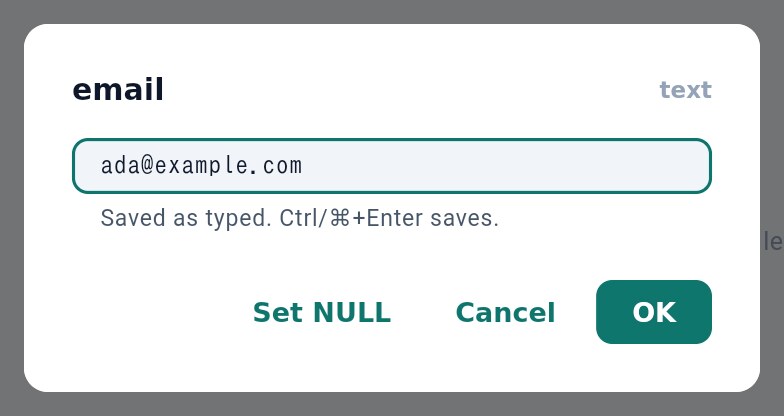
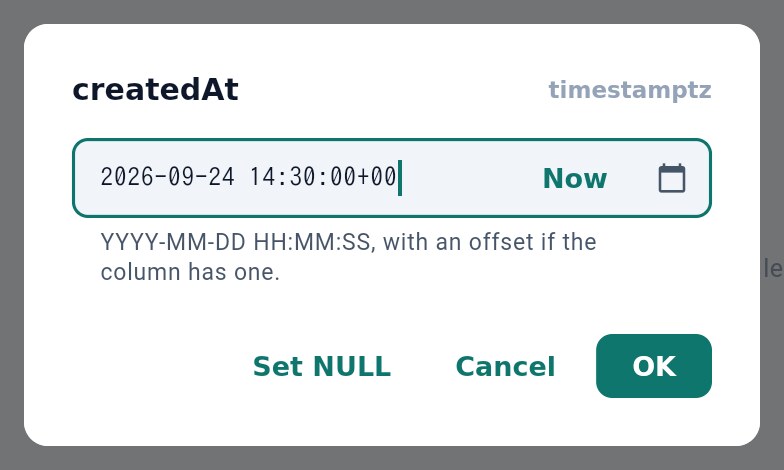
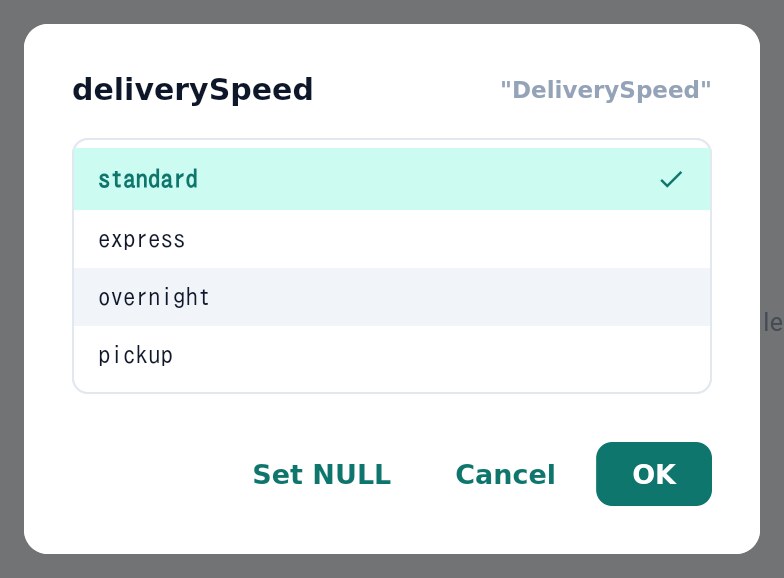
Double-click a cell to edit it. The editor fits the column’s type: a date and time picker with Now (a time column takes only the time of day), a list for an enum, a check box for a boolean, a JSON editor, numbers and UUIDs checked as you type. Set NULL 1 stores NULL.
Click a row number to mark the row for deletion, or + Row to add one. Nothing is written until you save: the edits become SQL statements, and they run through the approval dialog (see Section 4.6) so you see exactly what changes.
3.4 The inspector#
With a table selected, the inspector on the right lists its columns with their types, its indexes and its constraints. Copy DDL copies the CREATE statement; Browse rows, Design table and Edit definition open the object in a tab.