Tabellum for desktop · Chapter 6
Diagrams, snapshots and comparing schemas
6.1 Schema diagrams#
The Diagram button next to a schema in the sidebar draws its tables and the foreign keys between them.
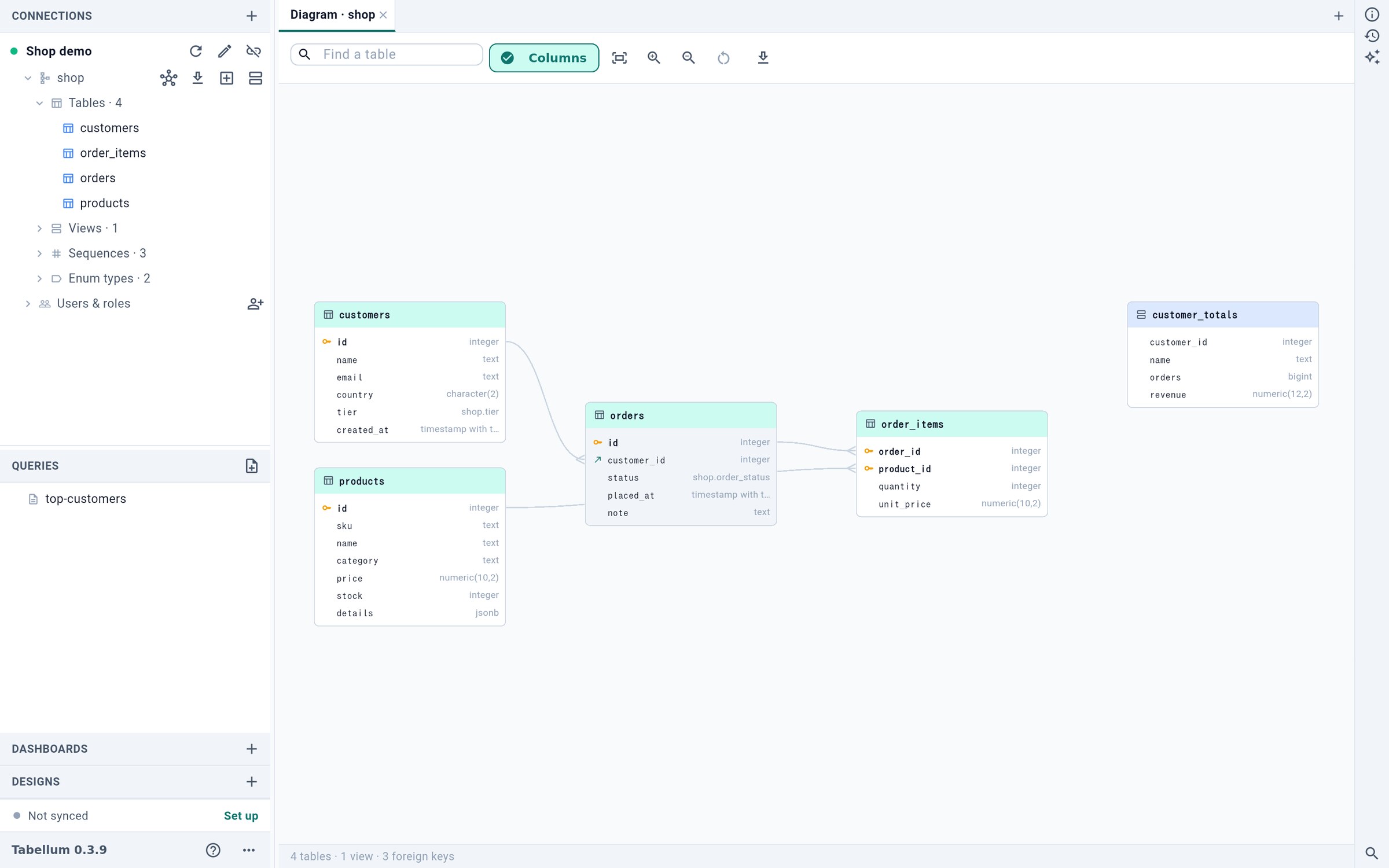
- Find a table
- Columns or names only
- Put moved tables back
- Save as SVG or PNG
- 1 finds a table by name and centers it.
- 2 switches between full columns and table names only — the better view for a large schema.
- Drag a table by its card to move it; Tabellum remembers where you put it. 3 puts the moved tables back.
- 4 saves the diagram as SVG, or PNG while it is small enough.
Scroll or drag the empty canvas to pan, pinch or use the zoom buttons to zoom. A click on a table selects it, lights up its foreign keys and opens the inspector; a click on empty canvas clears the selection.
6.2 Snapshots#
A snapshot is a schema’s structure — tables, columns, keys, indexes, views, functions — saved as a file in snapshots/, without any rows. Take one with Save schema snapshot in the palette or the connection’s menu — before a risky change, for example — then compare against it later, or bring a database back to it.
6.3 Comparing two schemas#
Compare schemas (in the palette or a connection’s menu) compares two sides: the one to migrate 1 and the one to reach 2. Each side is a connection as it is now or a saved snapshot.
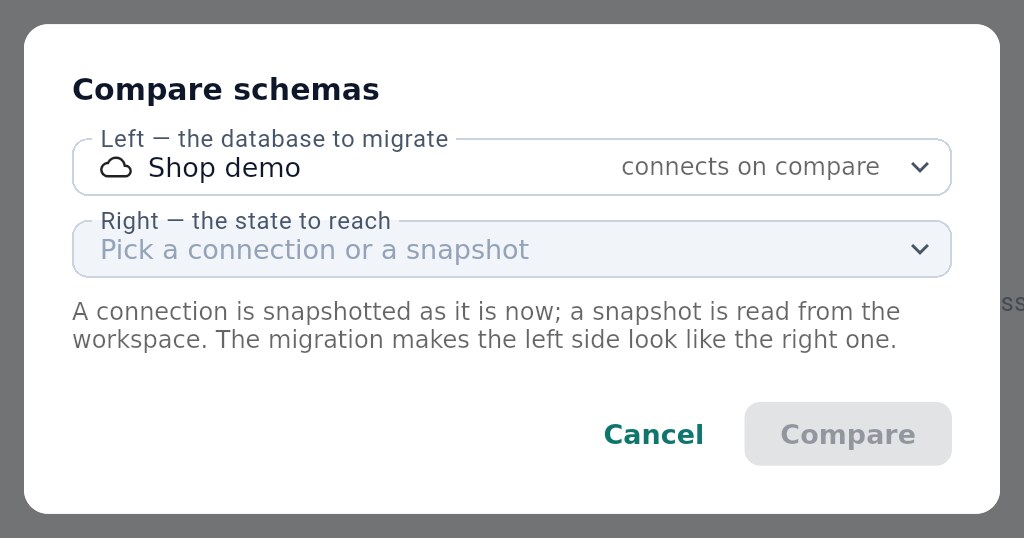
- The database to migrate
- The state to reach
The result lists every object as added, dropped, changed or the same, with what changed in each.
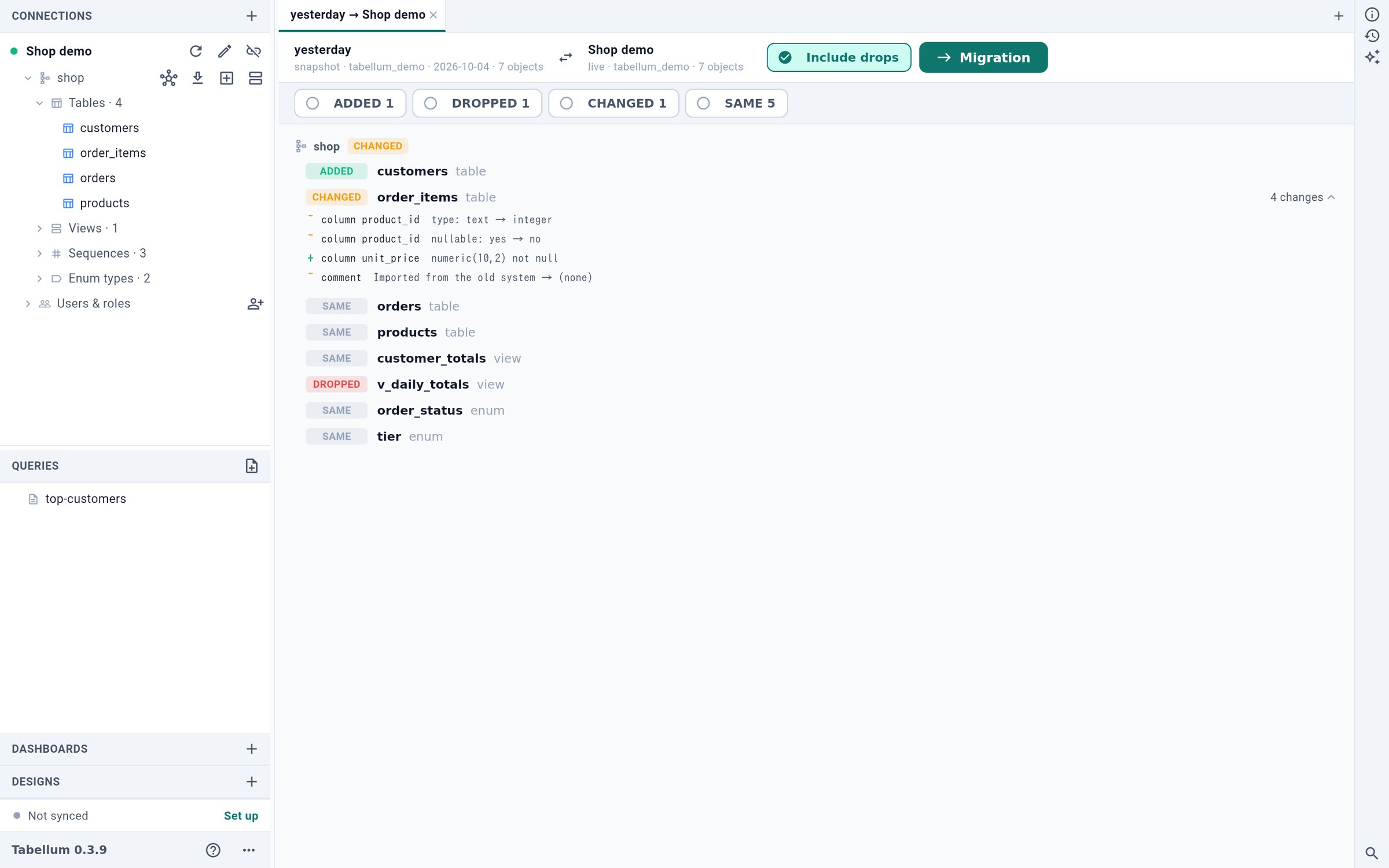
- Also drop what the target lacks
- The migration as SQL
Migration 2 opens the SQL that makes the left side match the right in a new tab. It runs only when you run it, through the approval dialog. Drops are left out unless Include drops 1 is on.