Tabellum for desktop · Chapter 1
Getting started
Tabellum is a database client for PostgreSQL, MySQL and MariaDB, SQL Server, BigQuery, SQLite and MongoDB. It browses and edits data, runs SQL, draws charts and dashboards, compares and designs schemas, and has an AI assistant that never writes to a database without your approval.
Everything you create — connections, saved queries, dashboards, designs, snapshots — is a plain file in your workspace folder. Passwords and API keys are not: they stay in the system’s secure storage, the keychain on a Mac.
This guide covers Tabellum on macOS, Windows and Linux. The screenshots come from a Mac; on Windows and Linux the window is the same, and wherever the guide says Cmd, press Ctrl. The few things only a Mac has say so.
1.1 The window#
The window has four parts: the sidebar on the left, tabs in the middle, the results under the editor, and panels on the right.
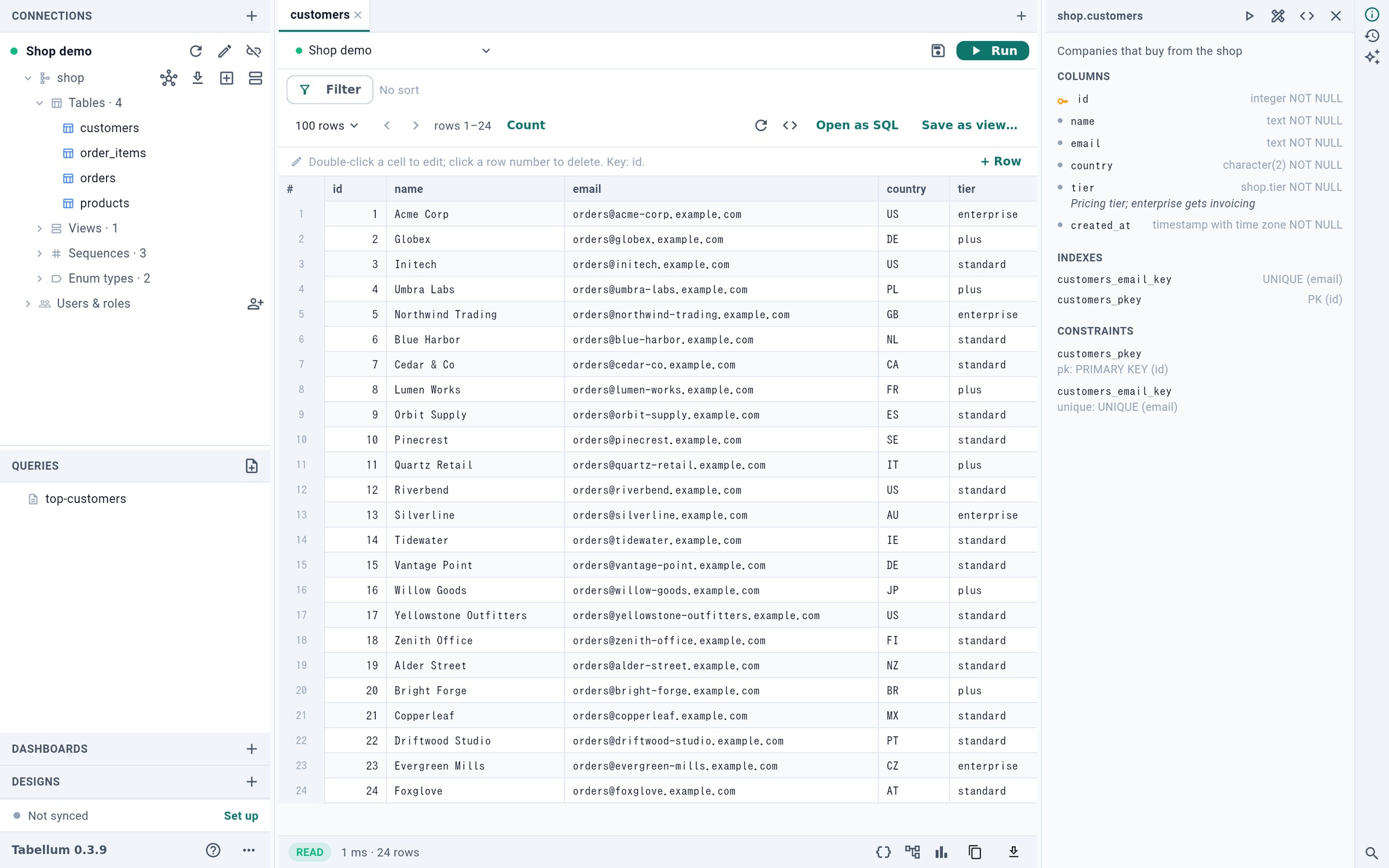
- Connections, their schemas and objects
- Filter the rows
- Count every row of the table
- The same rows as an editable query
- Inspector, history and agent panels
- The sidebar 1 lists your connections. Open one to see its schemas, tables, views, functions, sequences, enum types, and users and roles. Under them are your saved queries, dashboards and designs.
- A click on a table opens its rows in a tab. Filter 2 narrows them, Count 3 counts every row, and Open as SQL 4 turns the same view into a query you can edit.
- The buttons on the right edge 5 open the inspector (the selected object’s columns, indexes and constraints), the history of what ran, and the AI agent.
1.2 The demo database#
The first time Tabellum starts, its workspace already holds a small demo: an invented shop in an SQLite file inside the app, a saved query, and a design of its schema. Nothing needs a network or a server, so it is the quickest way to try every feature. Deleted demo files stay deleted; to get them back, choose Open the demo database in the ⋯ menu at the bottom of the sidebar (on a Mac, also in the File menu).
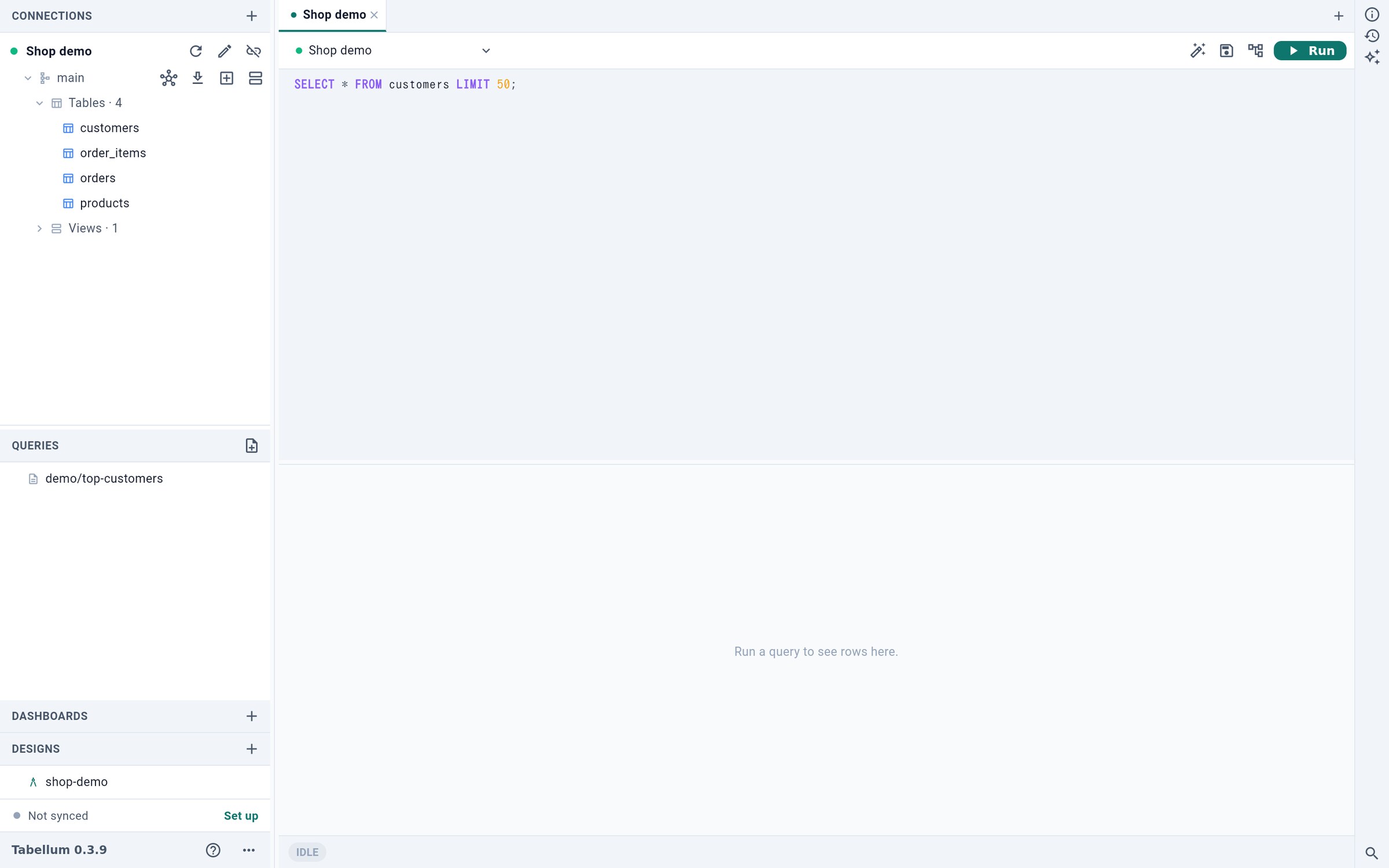
- Edit the connection
- An example saved query
- A design of the demo schema
- Run the query
- Click Shop demo 1 in the sidebar to connect.
- Open the example query 2 and click Run 4.
- Open the design 3 to see the schema designer (see Section 7).
1.3 Your workspace#
The workspace is a folder: Tabellum in your Documents folder, unless you open another one. Inside it, connections/ holds the connections, queries/ the saved queries, dashboards/, designs/ and snapshots/ the rest, and sqlite/ the SQLite databases that belong to the workspace. The files are readable YAML, SQL and JSON, so they can be kept in a git repository and shared (see Section 10.3).