Tabellum for mobile · Chapter 10
Backup, restore and sync
10.1 Backing up#
Long-press a connection in the menu and choose Back up….
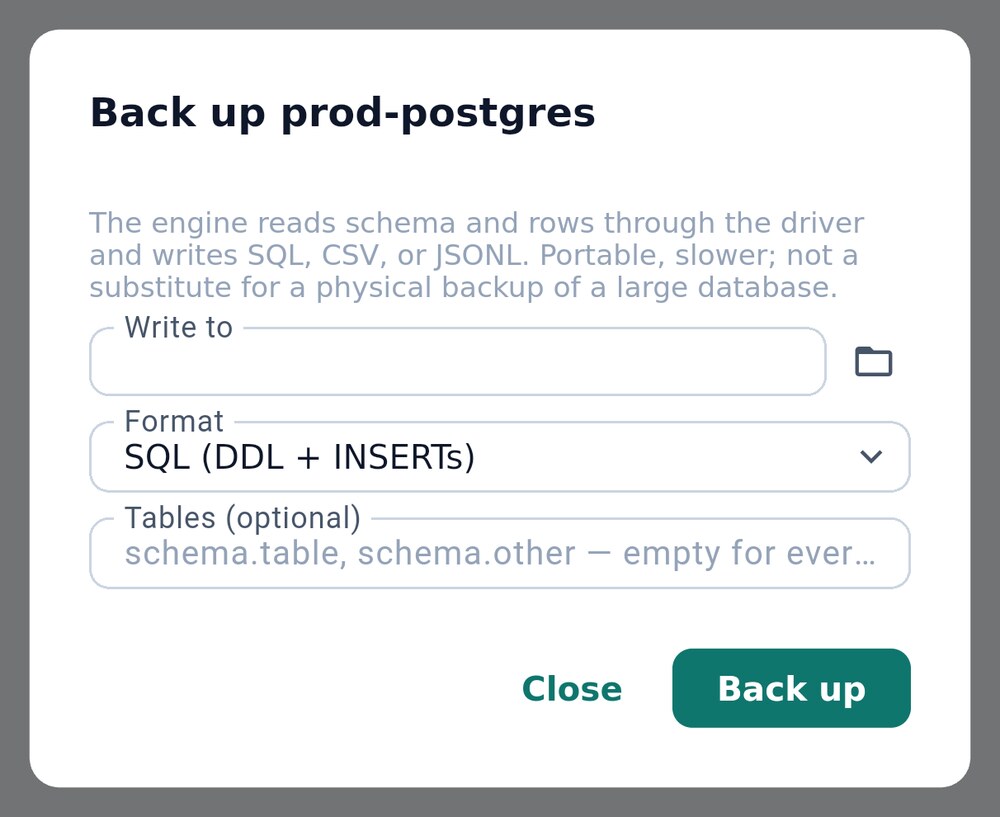
On a phone, Tabellum backs up through the database connection itself: the schema and the rows are written as one SQL file (statements and INSERTs), as CSV or JSON Lines with one file per table, or as an Excel workbook with one sheet per table. Tables limits it to some tables. This is portable and works everywhere, but it is slower than the database’s own backup tools and no substitute for them on a very large database.
10.2 Restoring#
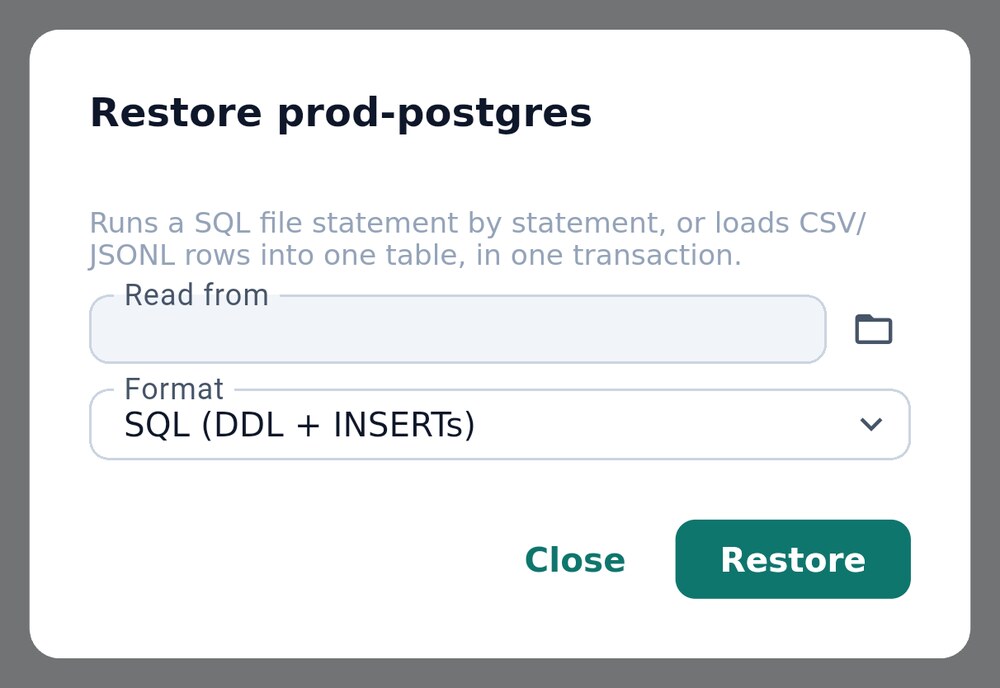
Restore…, in the same menu, runs an SQL file statement by statement, or loads CSV or JSON Lines rows into a table, in one transaction where the database supports it.
10.3 Syncing the workspace with git#
Sync keeps the workspace in your own git repository on GitHub, GitLab or Bitbucket, so your computer — or another phone — sees the same connections, queries and dashboards.
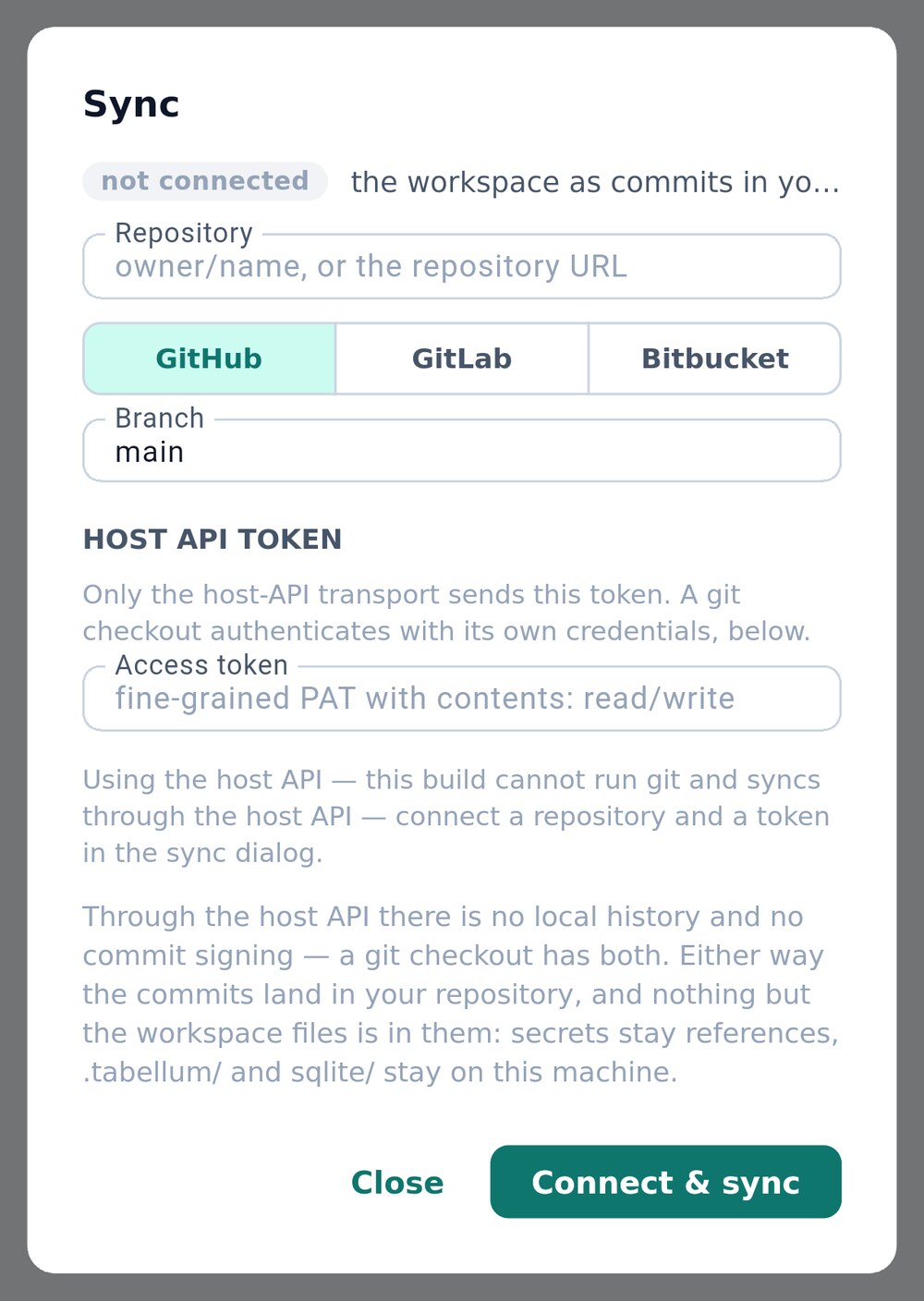
- Your repository
- GitHub, GitLab or Bitbucket
- An access token for that repository
- Choose Sync in the palette, or Set up at the bottom of the menu.
- Enter the repository 1 and pick its host 2.
- Paste an access token 3 that may read and write that repository.
- Tap Connect & sync.
The phone syncs through the host’s API, so it needs no git of its own. Each sync commits your changes and brings in everyone else’s. When two people edit the same connection, dashboard or tunnel, Tabellum merges them field by field; a real conflict is shown side by side for you to choose.