Tabellum for mobile · Chapter 7
The schema designer
The designer is a canvas for changing a schema the way you would draw it: add tables, drag foreign keys between columns, edit types and constraints. Nothing touches the database until you tap Apply, and then you see every statement first. A design is a file in designs/.
7.1 Starting a design#
Open the menu and tap + next to DESIGNS.
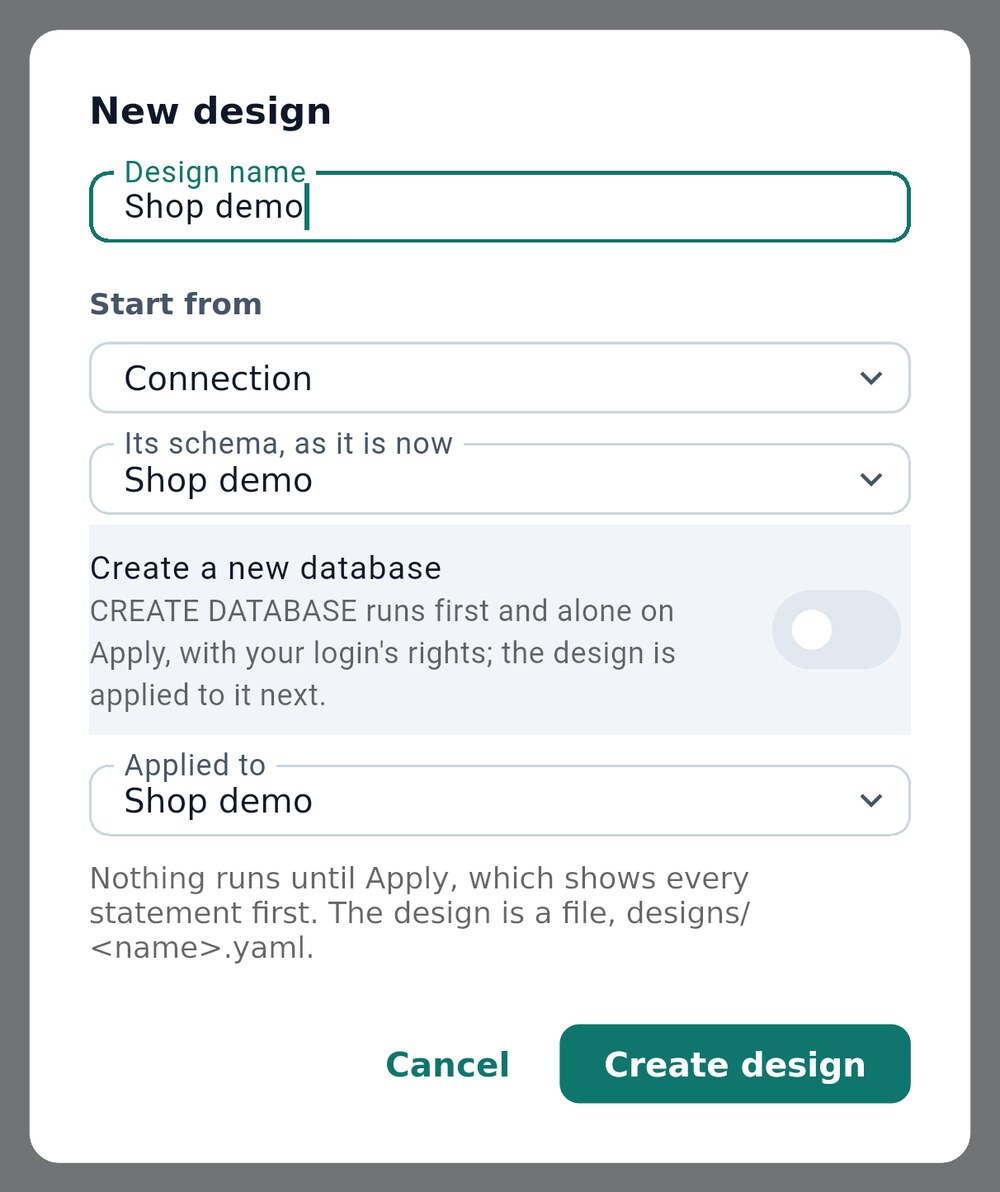
- Where the design starts from
- Create a new database instead
Under Start from 1, choose:
- Connection — the database’s schemas as they are now. Applied back to the same database, nothing changes until you edit something.
- Snapshot — a saved snapshot, to build on it or bring a database back to it.
- Design — a copy of another design.
- Empty — a blank schema.
Create a new database 2 makes the design create its database first; you choose its name, the server it is created on and its options.
7.2 The canvas#
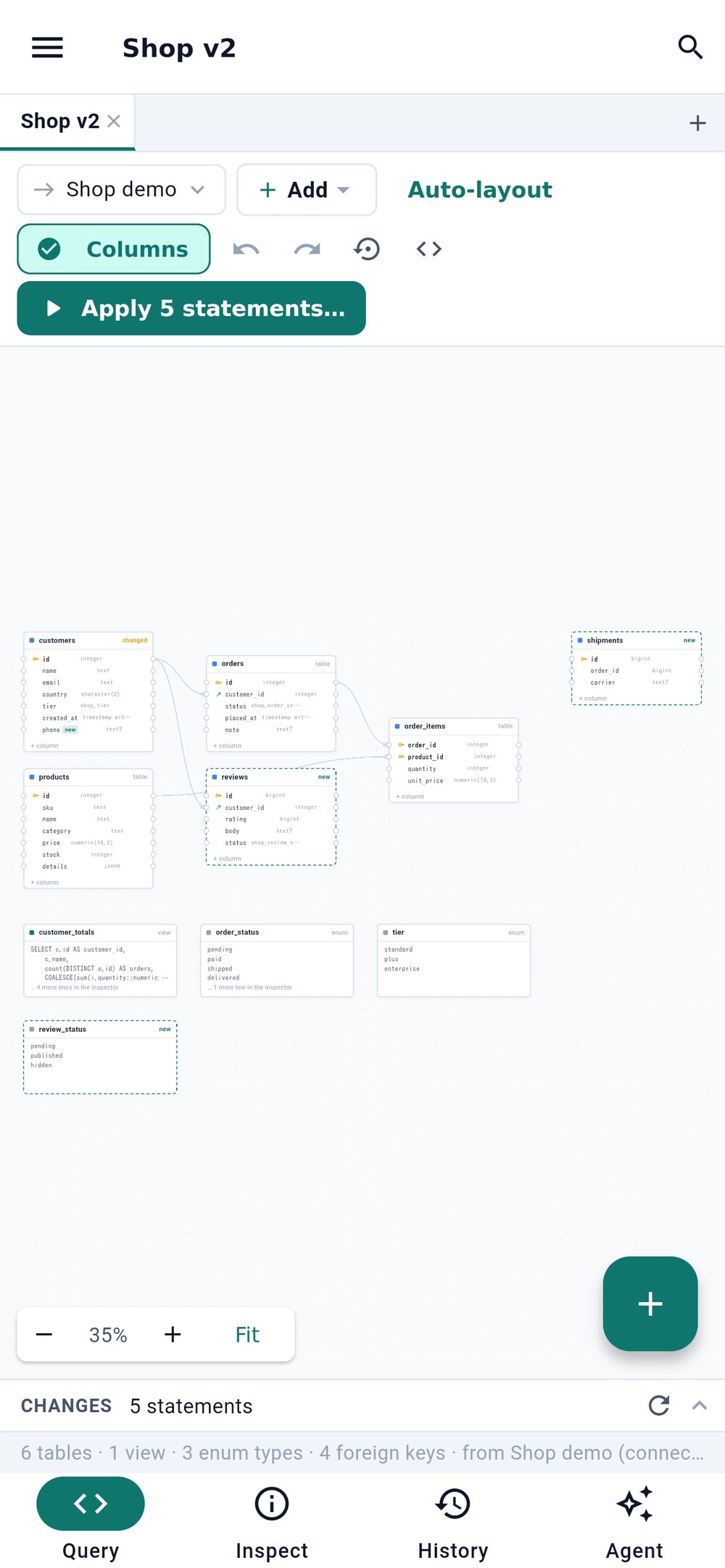
- The connection Apply runs on
- Add a table, view, function…
- Reload the design from the database
- Apply the changes
- Add an object
- 1 is the connection Apply runs on.
- 2 and the round + button 5 add a table, view, materialized view, function, procedure, sequence or enum type — what the database supports.
- Drag a table to move it. Drag from a column’s port (the ring at its edge) onto another table’s column to create a foreign key.
- The arrows just before 3 undo and redo any change, including moves.
- Auto-layout arranges the canvas; Columns shows or hides the columns.
Tables marked new or changed differ from the database; a red dashed table is one the database has and the design does not, which Apply would drop.
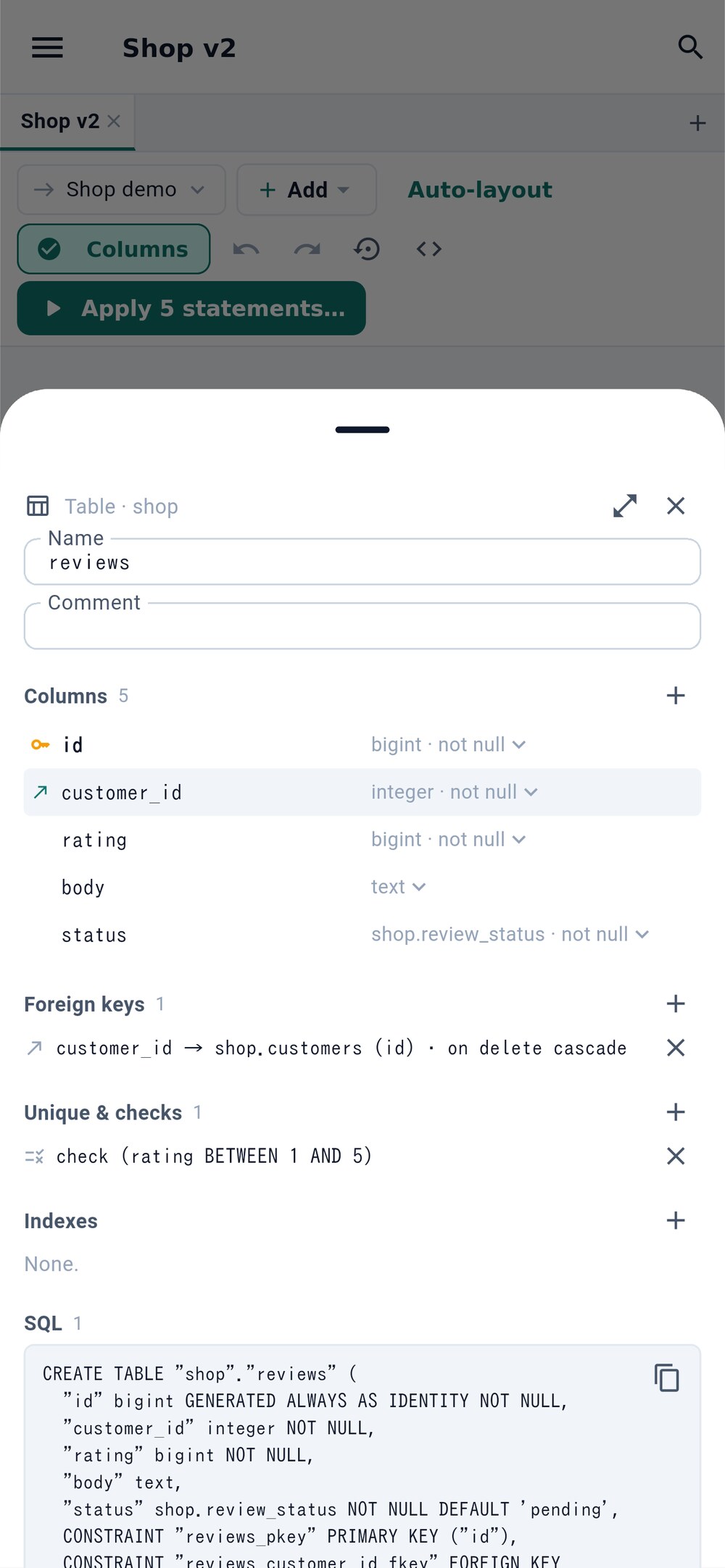
A tap on a table opens its inspector in a sheet from the bottom: name, comment, columns with their types and defaults, keys, foreign keys, checks and indexes, and the SQL for that object. Drag the sheet down to close it; its expand button opens the object full-screen.
7.3 Reviewing and applying#
The Changes bar under the canvas is always up to date: how many statements Apply would run, what it would drop, any warnings, and the statements themselves. Tap it to open it.
Tap Apply 4 in the canvas picture. The statements open in the approval dialog and run in one transaction where the database allows it.
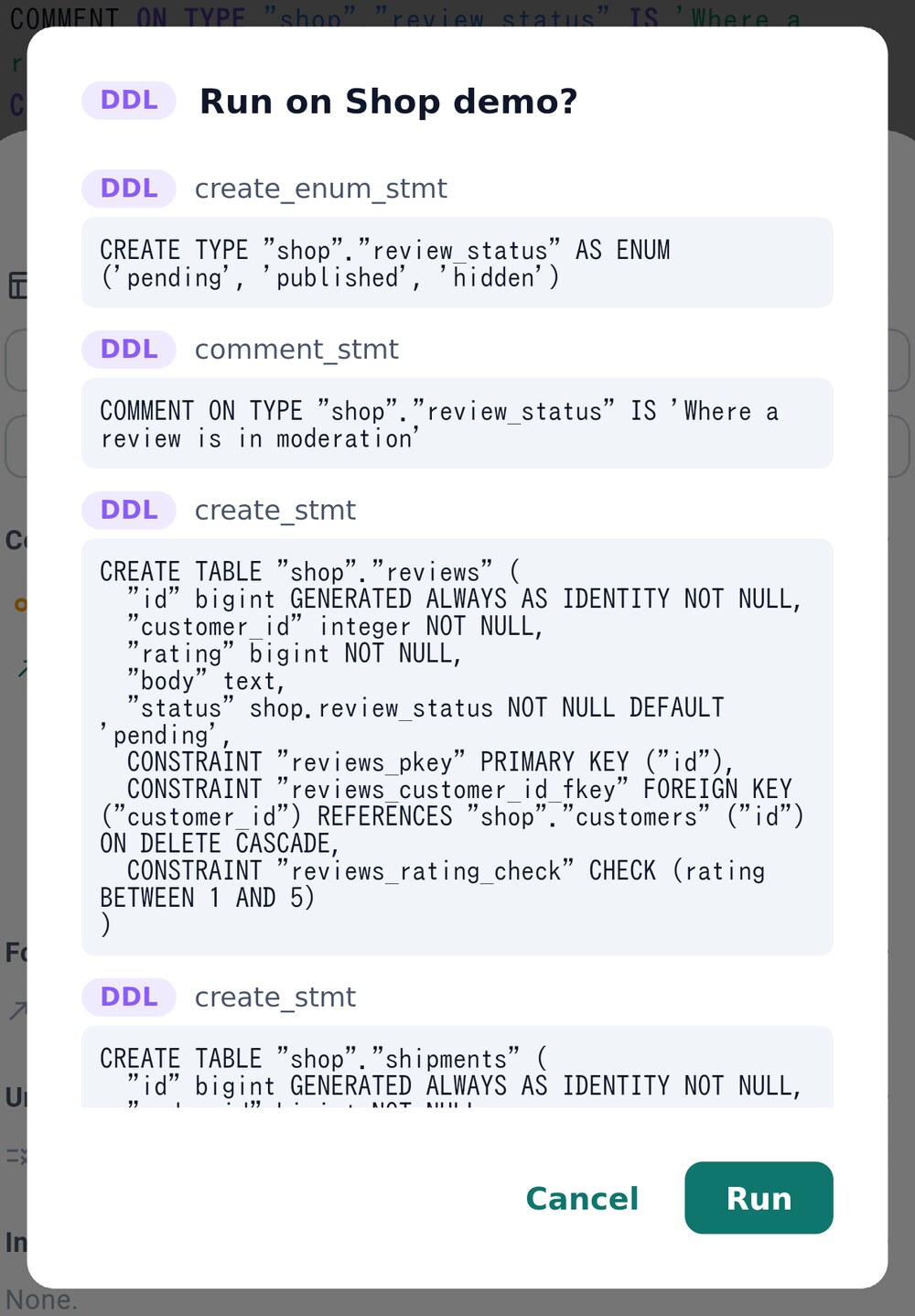
The code button next to Apply opens the same script in a query tab instead, to run it yourself or keep it.
7.4 When the database has changed#
If someone changed the database after you made the design — a migration, a new table — Apply would undo their change. Two buttons bring the design up to date:
- Reload from the database 3 reads the database again, lists what your design would lose, and replaces the design with the database’s schema. Table positions are kept, and undo brings your version back.
- Take from the database, in the inspector of a table marked changed, replaces that one table with the database’s version and keeps the rest of your design.
7.5 Full-screen editors#
The expand button in the inspector opens an object in its own tab, with its definition and a preview: sample rows, the query plan, or the SQL that would run.
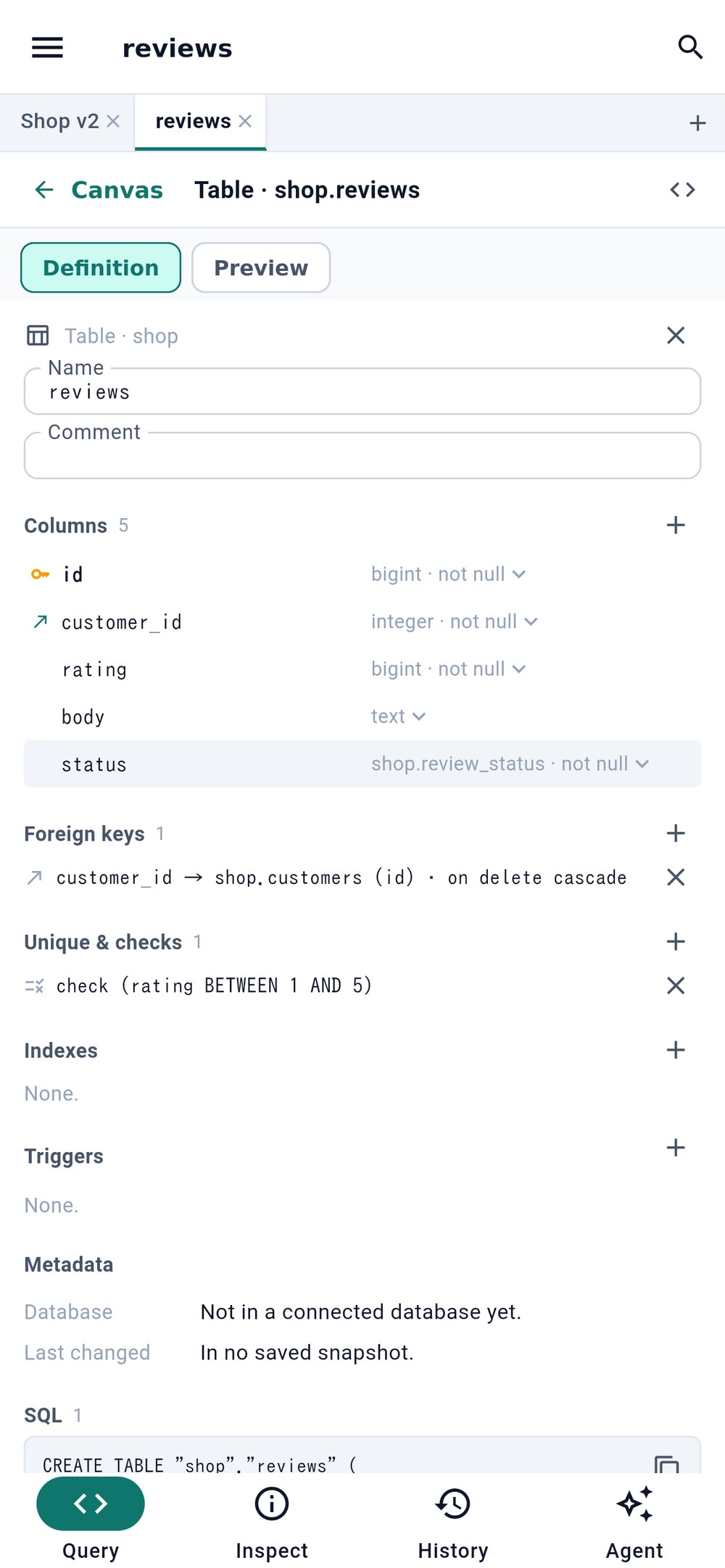
- Back to the canvas
- The form, or its preview
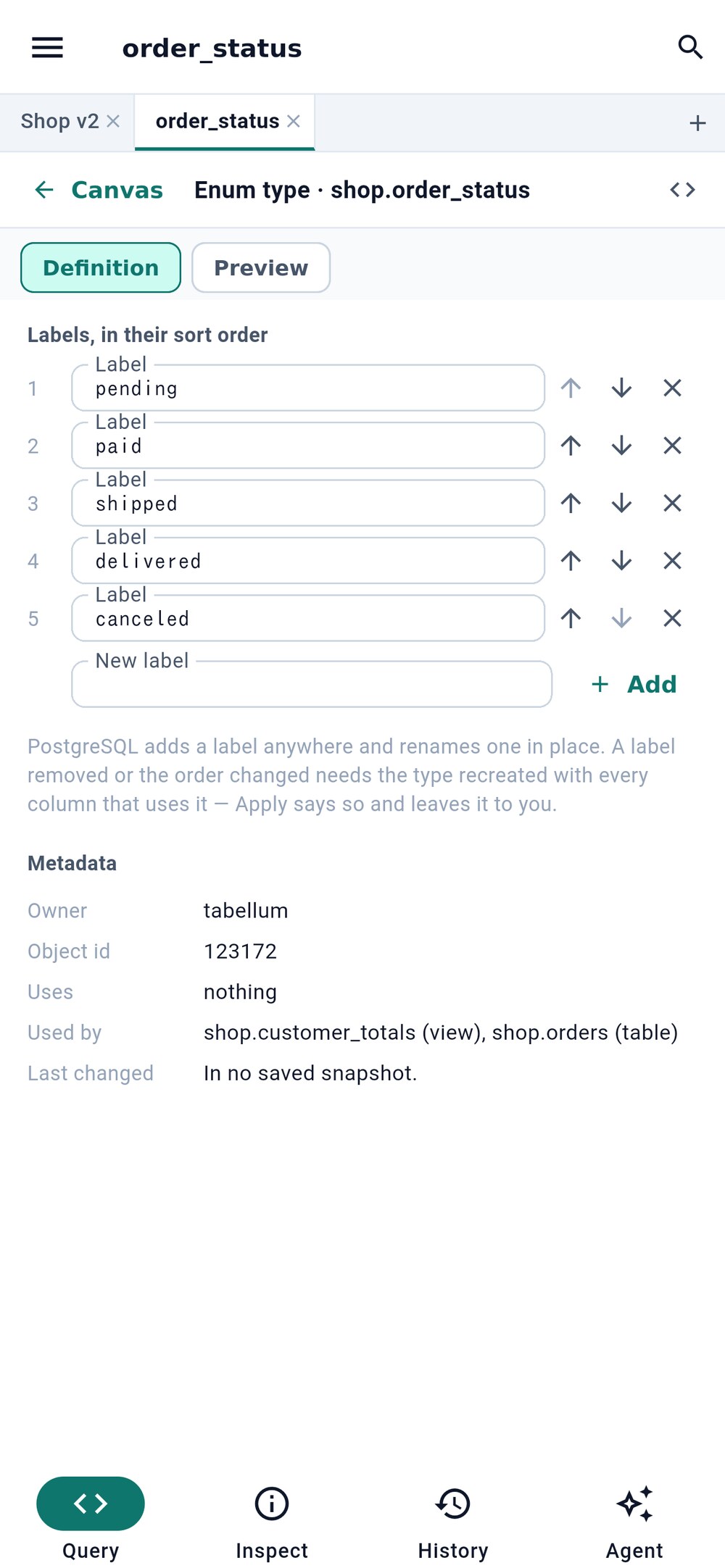
Canvas 1 goes back to the design. Definition and Preview 2 switch between the form and the preview.
7.6 Creating a database#
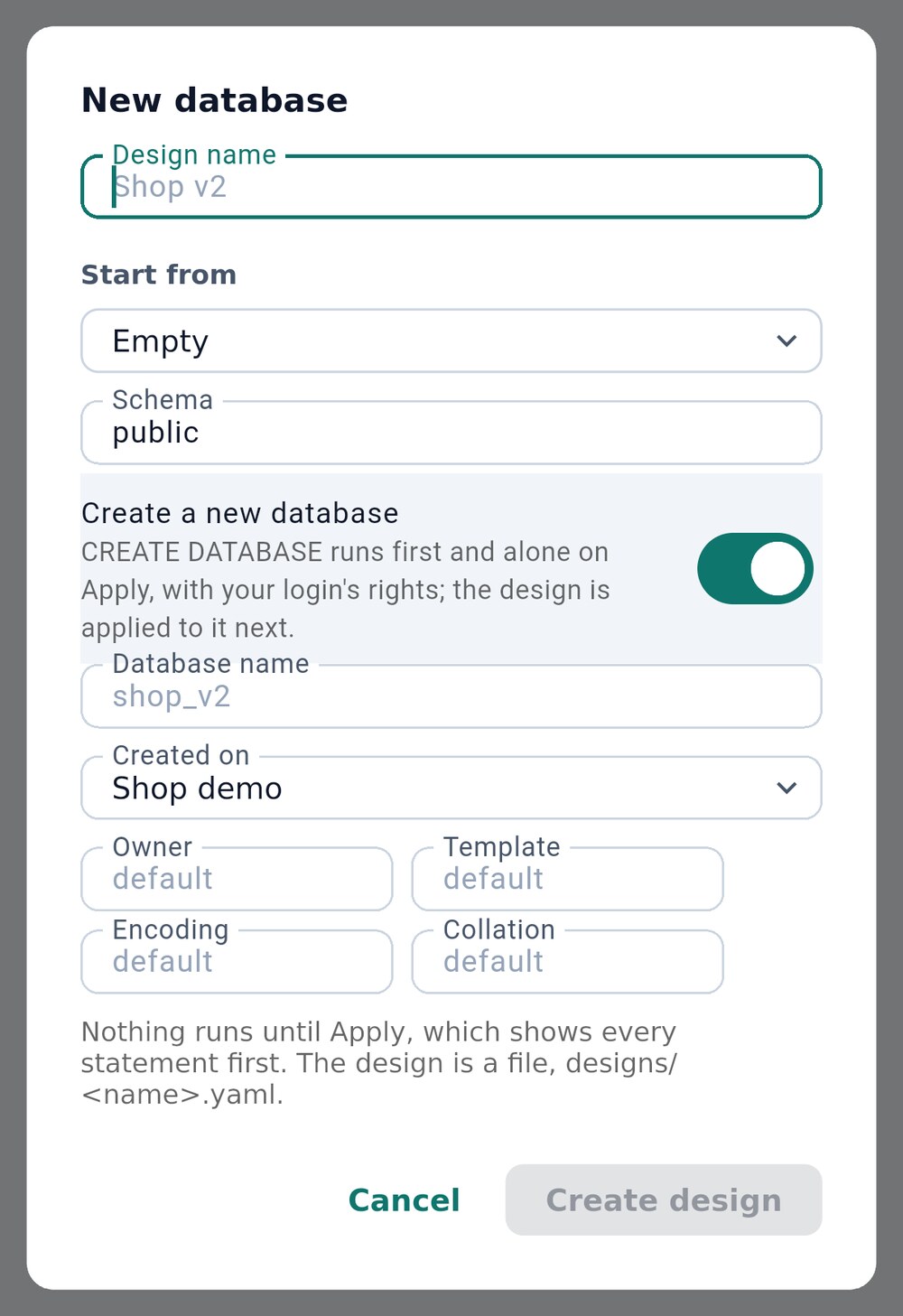
On PostgreSQL you choose the owner, template, encoding and collation; on MySQL the character set and collation; on SQL Server the owner and collation. Without a server, the new database is an SQLite file in the workspace.