Tabellum for mobile · Chapter 3
Browsing and editing data
3.1 The schema tree#
Open the menu and tap a connection to see its schemas. Each schema groups its tables, views, functions, sequences and enum types; Users & roles lists the logins.
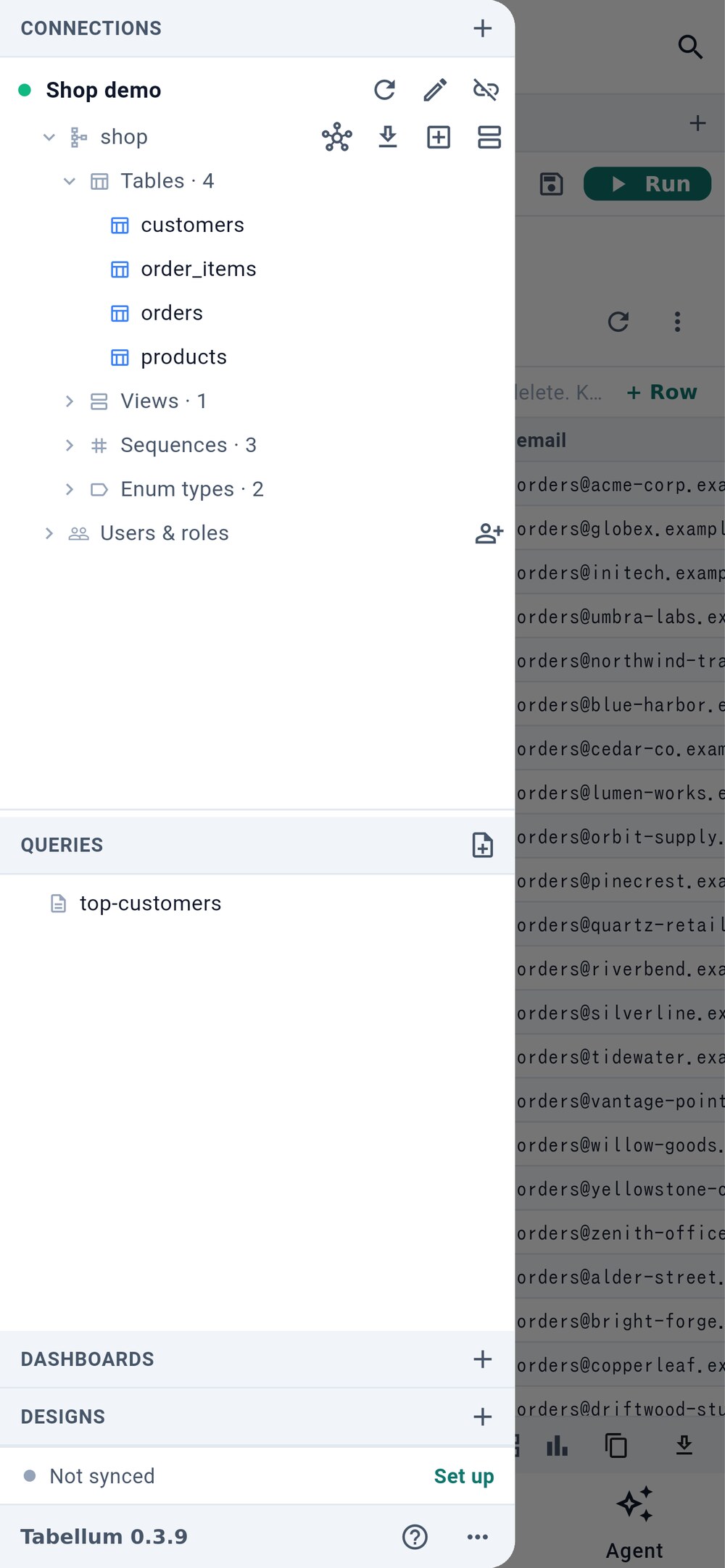
- Add a connection
- The schema as a diagram
- Saved queries
- Sync with a git repository
- 1 adds a connection.
- 2 draws the schema as a diagram (see Section 6.1).
- Saved queries 3 are files in
queries/; a tap opens one in a tab. - 4 sets up sync (see Section 10.3).
A long press on an object opens its menu: export, import into a table, design, edit, and more.
3.2 A table’s rows#
A tap on a table opens its rows in a tab, 100 at a time. Use the arrows to page, and tap a column header to sort by it.
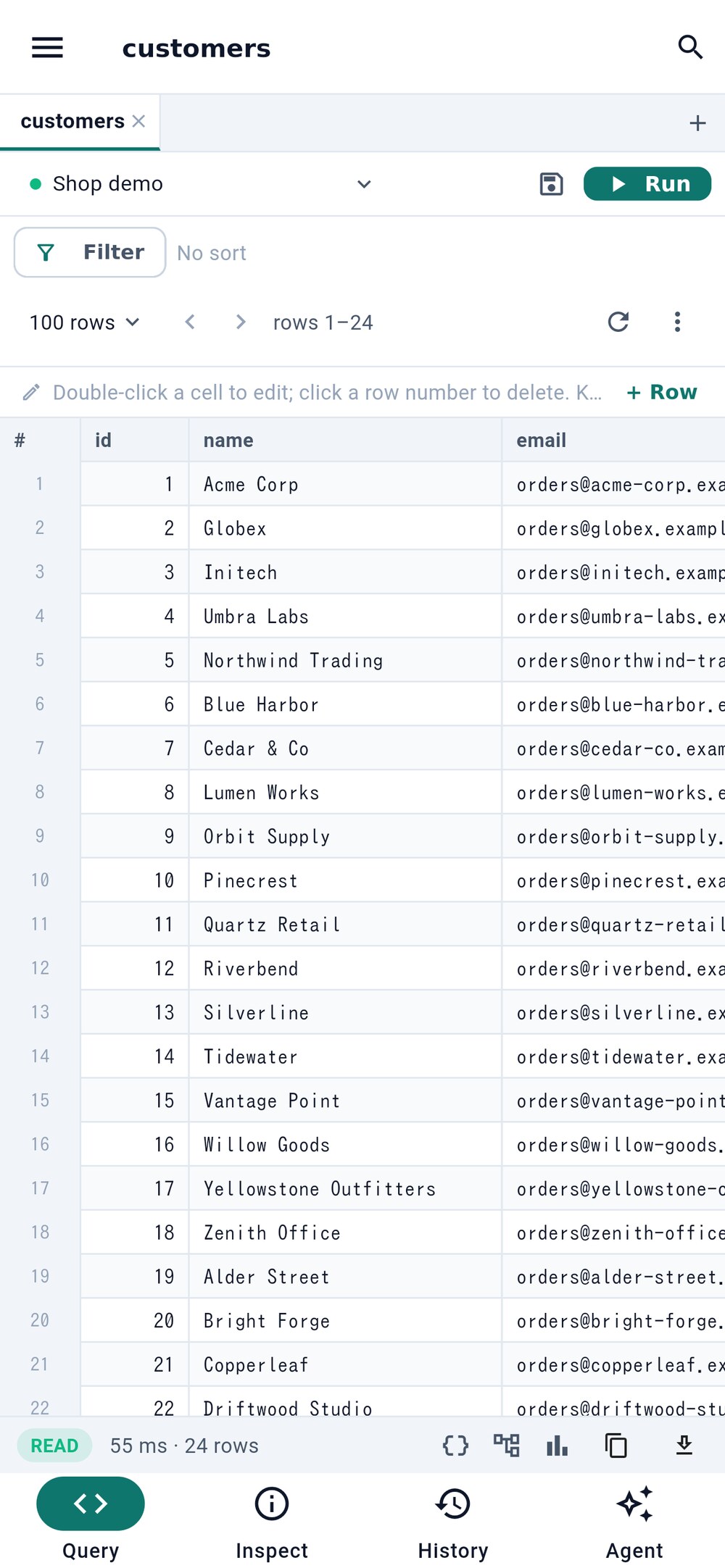
- Filter the rows
- Add a row
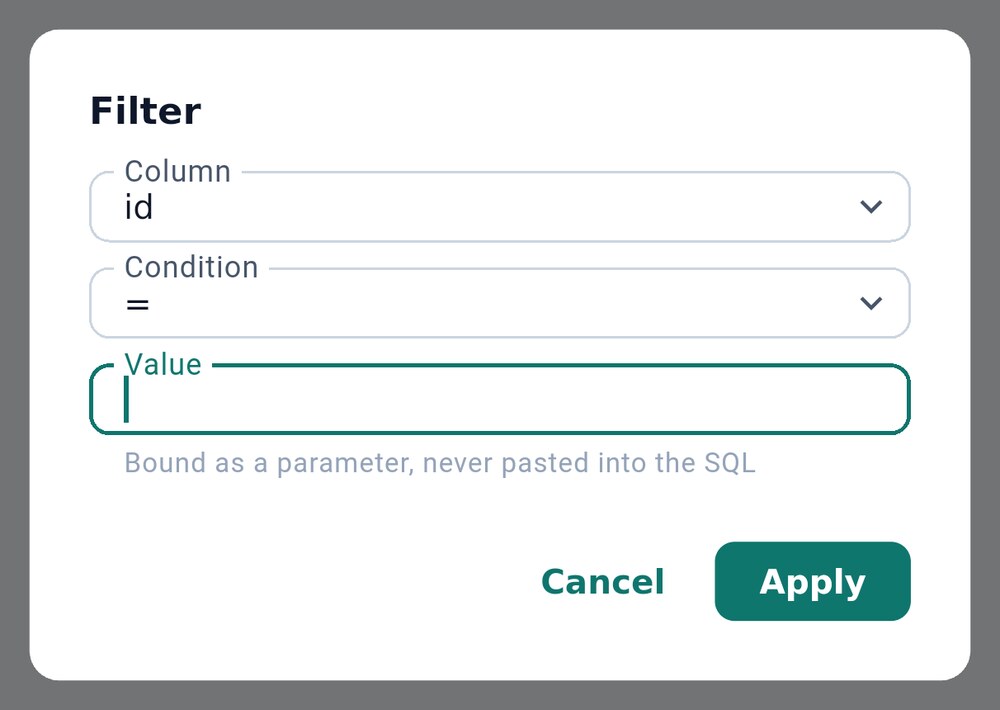
Filter 1 adds a condition; the value is passed to the database as a parameter, never pasted into the SQL. The ⋮ menu counts every row or opens the same view as a query you can edit.
The bar under the rows shows how long the read took and how many rows came back. Its buttons switch the result between a table, JSON and a chart, copy it, and export it as CSV, JSON, SQL INSERT statements or an Excel workbook.
3.3 Editing cells#
Double-tap a cell to edit it. The editor fits the column’s type: a date and time field with Now, a list for an enum, a check box for a boolean, a JSON editor, numbers and UUIDs checked as you type. Set NULL 1 stores NULL.
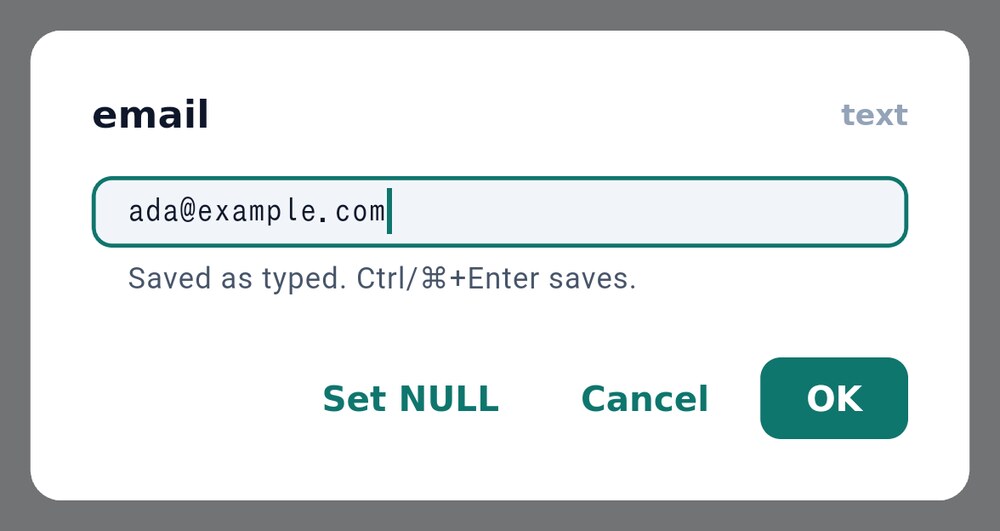
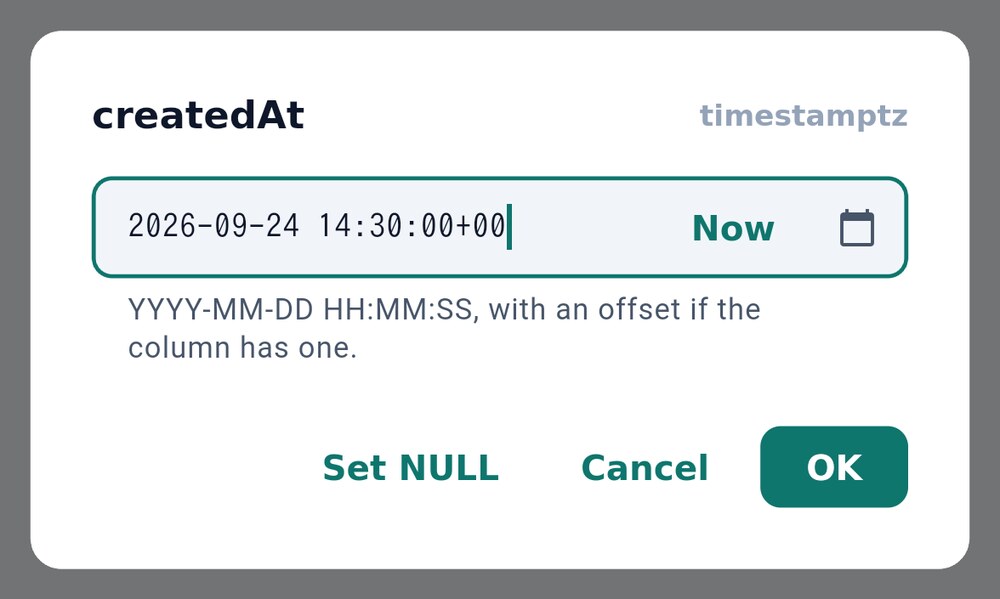
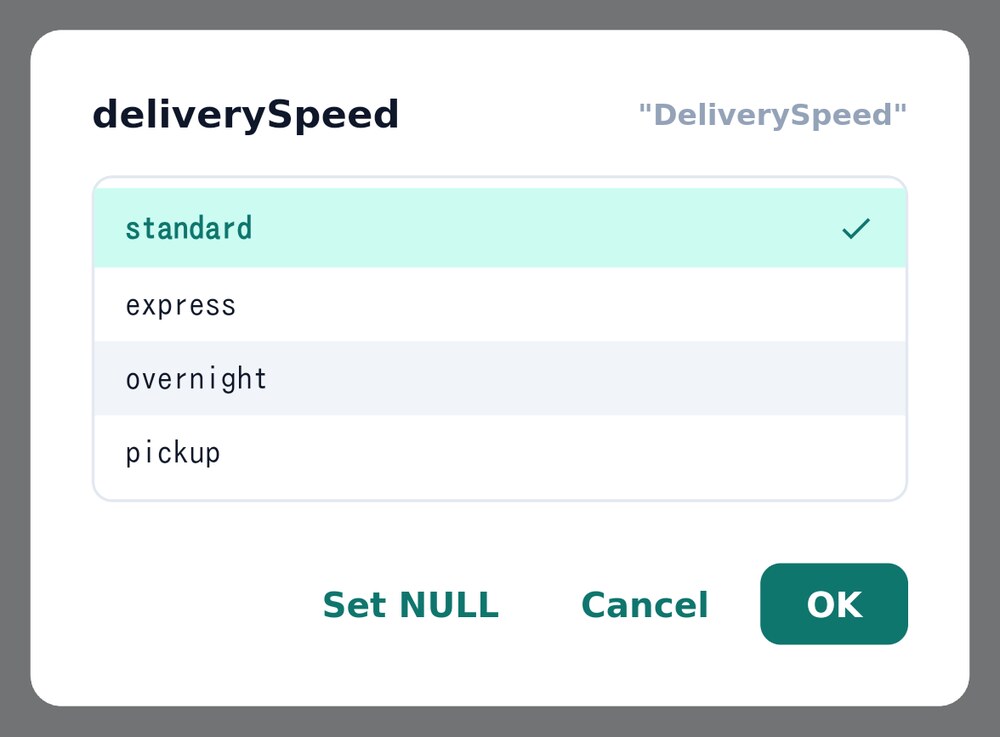
Tap a row number to mark the row for deletion, or + Row 2 in the rows picture to add one. Nothing is written until you save: the edits become SQL statements, and they run through the approval dialog (see Section 4.6) so you see exactly what changes.
3.4 The inspector#
With an object selected, the Inspect page lists its columns with their types, its indexes and its constraints. Copy DDL copies the CREATE statement; Browse rows, Design table and Edit definition open the object in a tab.