Tabellum for mobile · Chapter 2
Connections
A connection is the address of one database and how to log in to it. Tabellum keeps as many as you like and can have several open at once.
2.1 Adding a connection#
- Open the menu and tap + next to CONNECTIONS.
- Pick the Driver 1: PostgreSQL, MySQL / MariaDB, SQL Server, BigQuery, SQLite or MongoDB.
- Fill in the host, port, database, user and password.
- Tap Test 4. When the test passes, tap Save.
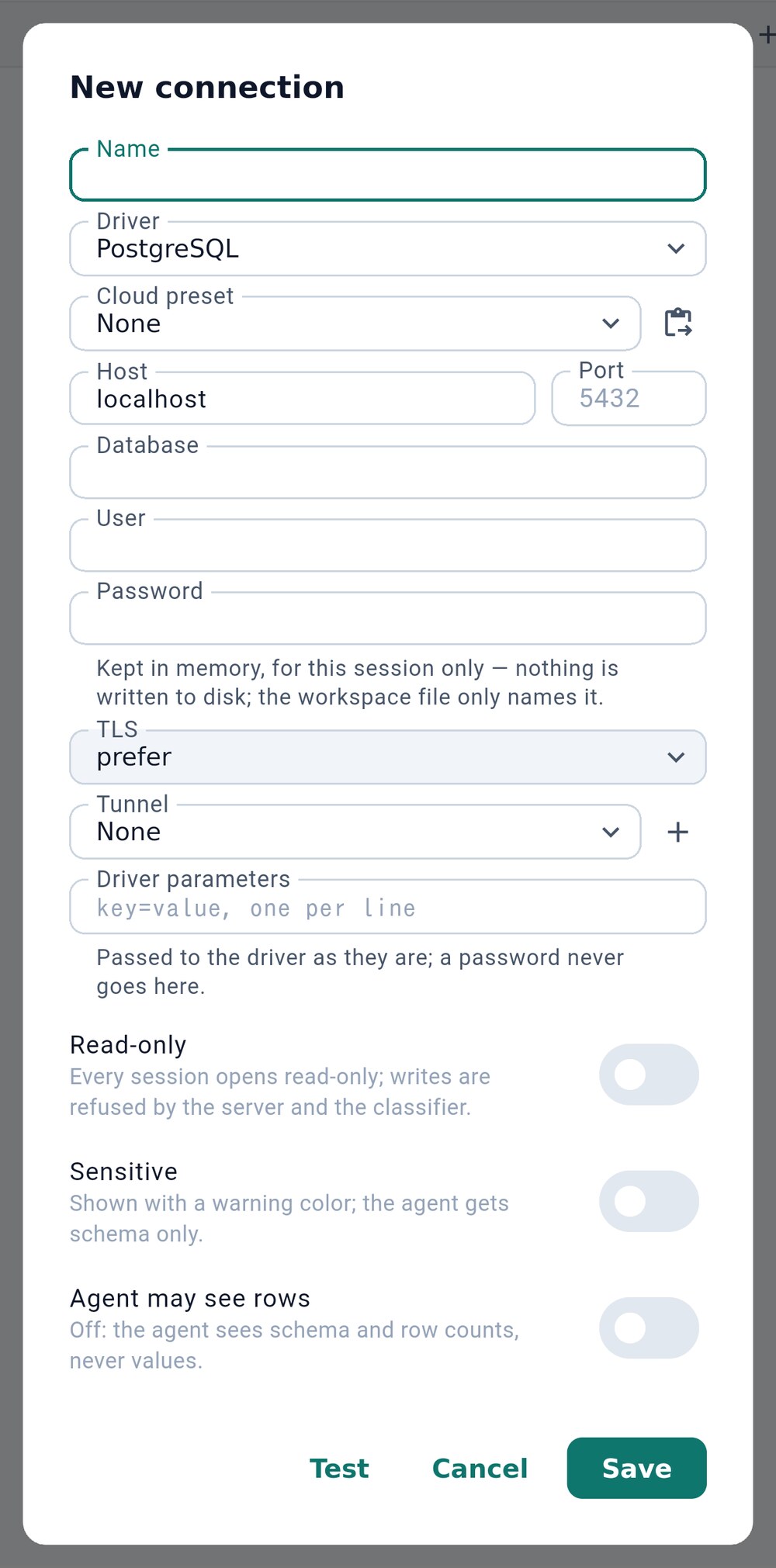
- The database type
- Fill the form from a connection string
- Refuse every write on this connection
- Try the connection before saving
Three switches decide what may happen on the connection:
- Read-only 3: every session opens read-only. The server refuses writes, and Tabellum refuses them before they reach it.
- Sensitive: the connection is drawn in a warning color, and the AI agent gets only its schema.
- Agent may see rows: off by default. While it is off, the agent sees tables, columns and row counts, never values.
If you have a connection string (postgres://…, mysql://…, mongodb+srv://…, a JDBC URL), copy it, tap the clipboard button 2 and paste it. Tabellum fills in the form, puts the password into secure storage and lists what it set and what it could not.
2.2 Cloud databases#
For a hosted database, pick its provider under Cloud preset 1. The preset fills in the port, TLS mode and driver settings the provider needs and explains what is special about it 2 — for example, that a transaction pooler has no prepared statements.
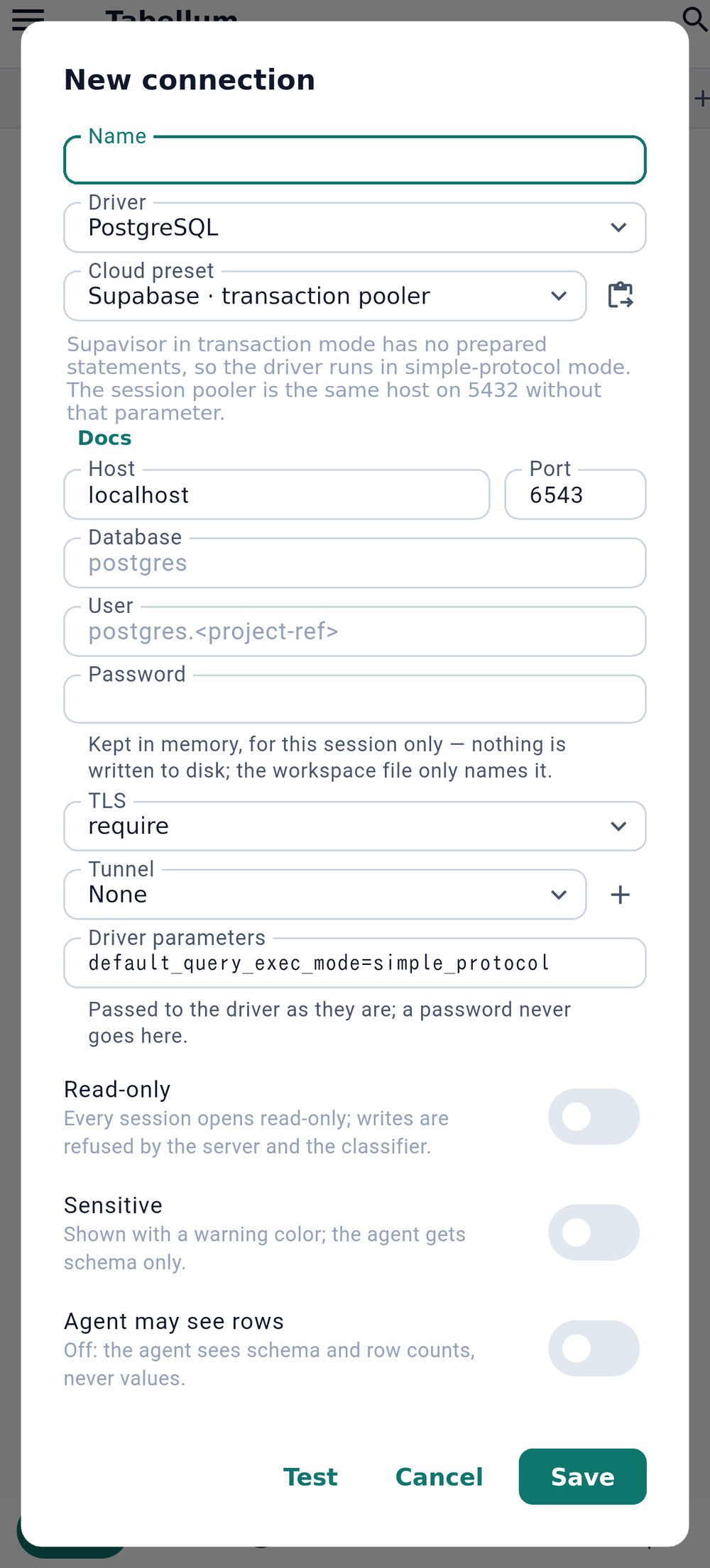
- A cloud provider's settings
- What the provider needs
2.3 SQLite files#
An SQLite database is a file, so its connection has no host or login. Browse… 2 picks a file and New… 3 creates an empty one. A picked file is copied into the workspace’s sqlite/ folder, because the app may only keep access to its own folder.
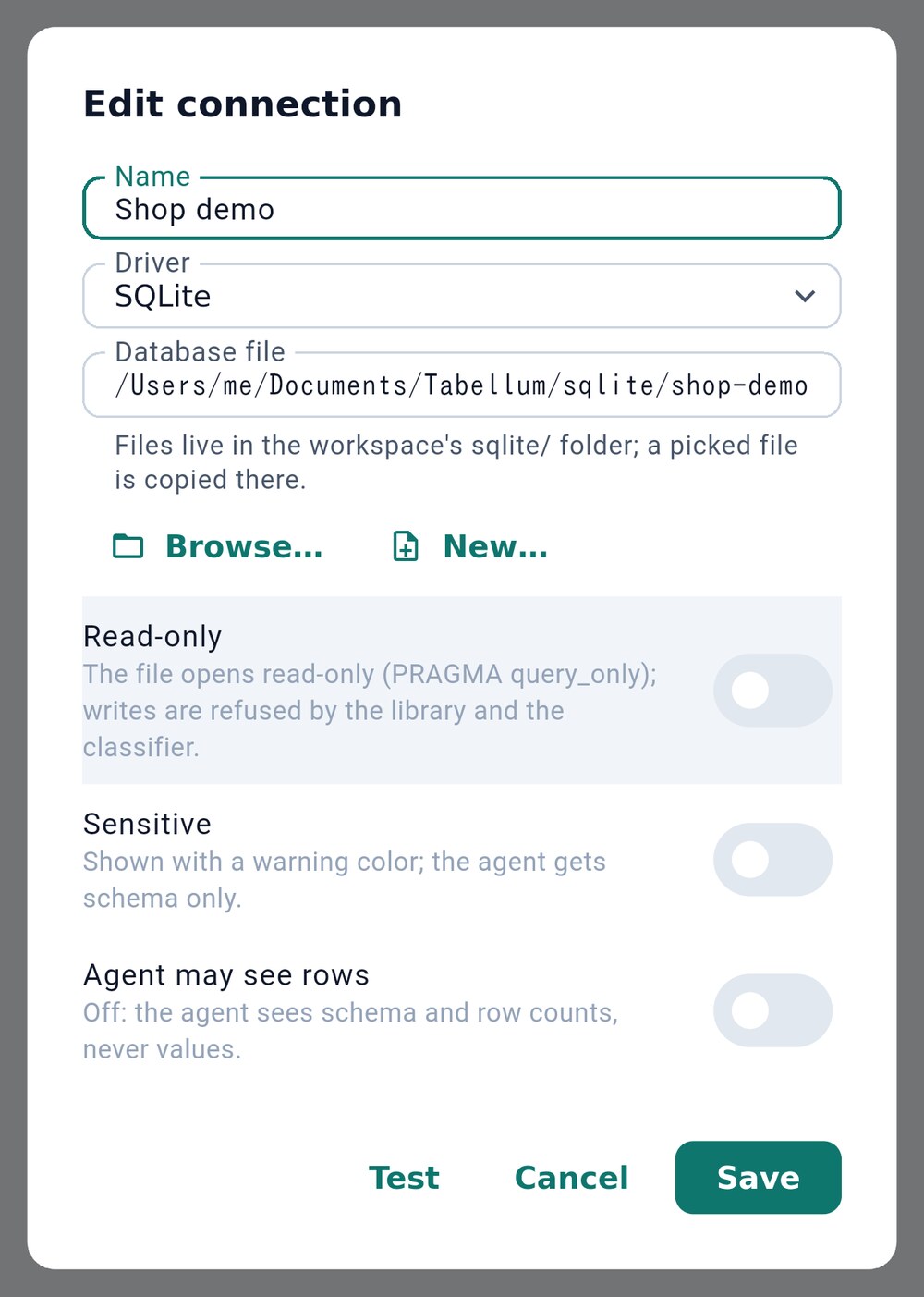
- The database file
- Pick a file
- Create a new database file
2.4 Editing a connection#
Each connection in the menu has a pencil button, Edit, that opens the same form; a long press on the connection opens its menu with everything else. A connection that cannot connect shows one line saying what failed and what to check — a refused port, a timeout, a wrong password or a TLS problem.
When you come back to the app after a while, Tabellum reconnects the open connections by itself. A read that failed because the connection dropped is retried once; anything else offers Run again.
2.5 SSH and WireGuard tunnels#
When a database is only reachable through a server or a VPN, add a tunnel and choose it in the connection’s Tunnel field (the + next to it creates one). Tunnels run inside the app: they need no VPN profile and change nothing else on the phone.
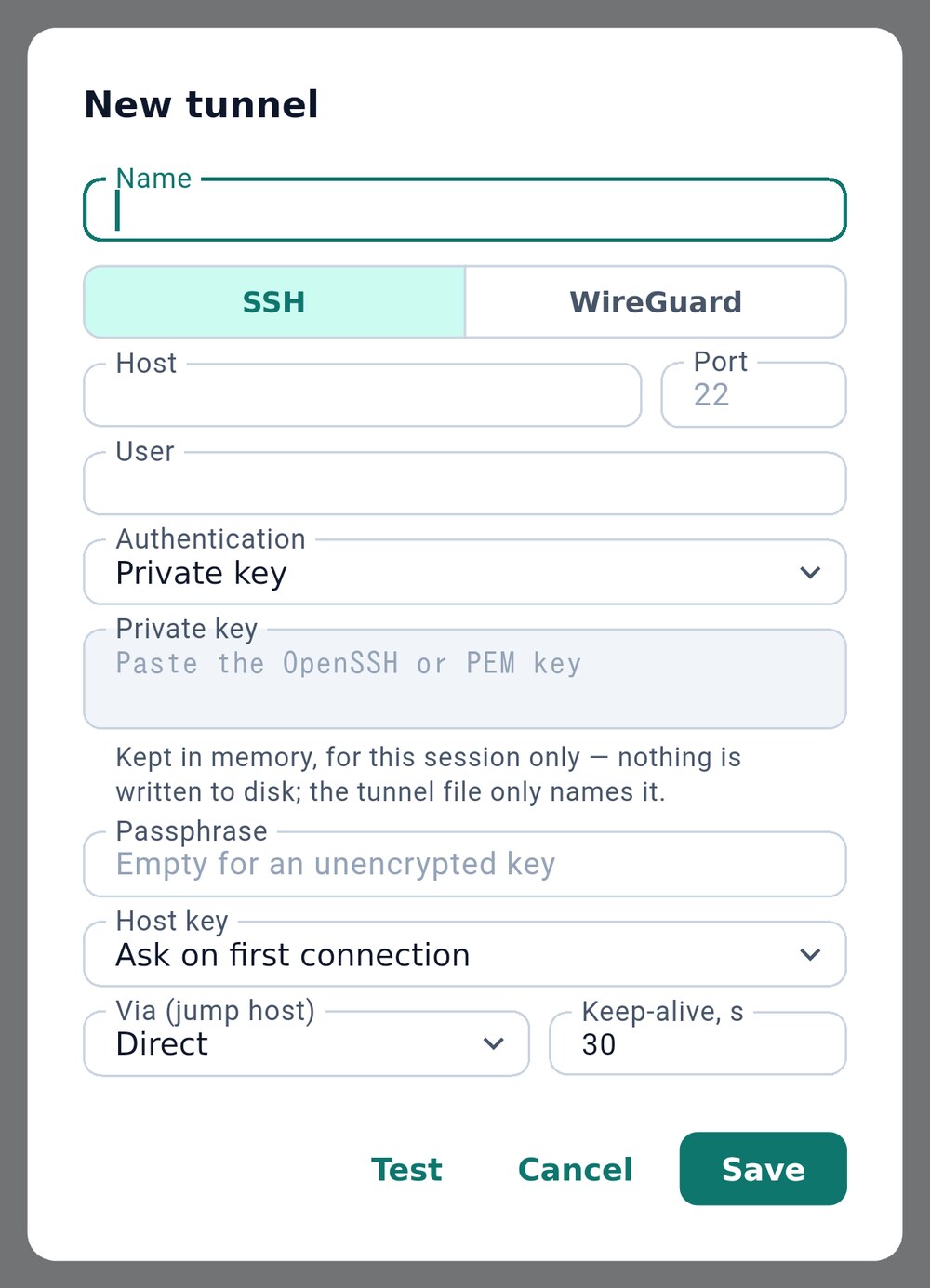
- SSH, or a WireGuard peer
- How the server's key is checked
- Reach it through another tunnel
- SSH 1 logs in with a private key (and its passphrase) or a password. WireGuard connects as a peer; paste a
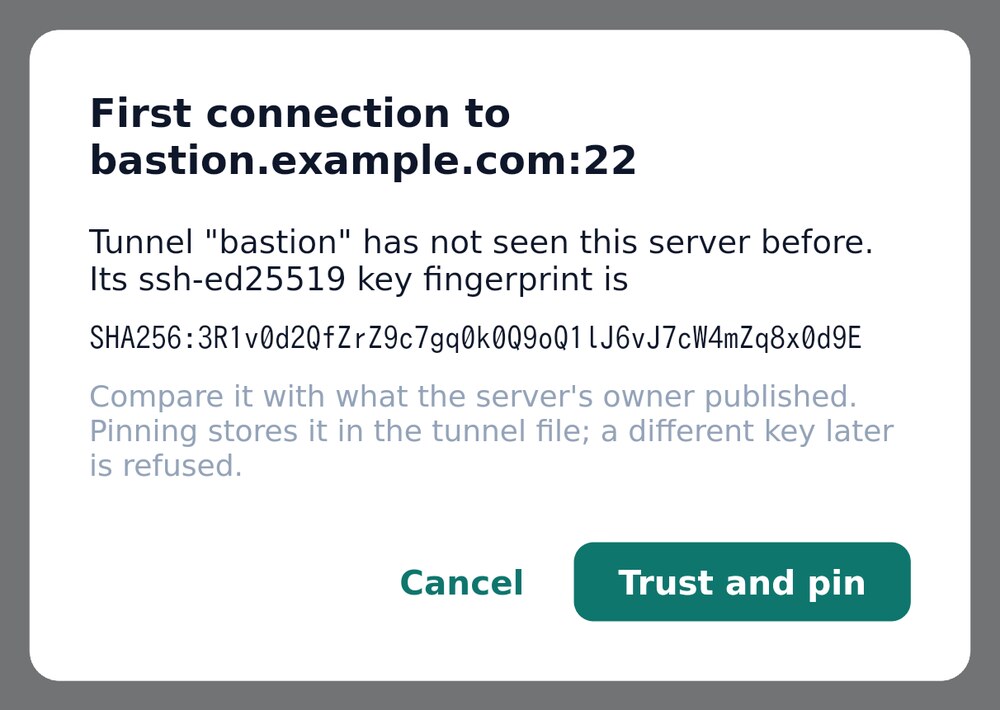
wg-quickconfiguration and the fields are filled in. - Host key 2 decides how the server’s key is checked. With Ask on first connection, Tabellum shows the key’s fingerprint the first time and remembers it.
- Via (jump host) 3 reaches the server through another tunnel.
2.6 Sharing connections#
Connections and tunnels move between devices with a code: set them up on the computer, then scan them into the phone. Choose Share connections… in the Tabellum menu (⋯), or Share… in a connection’s menu.
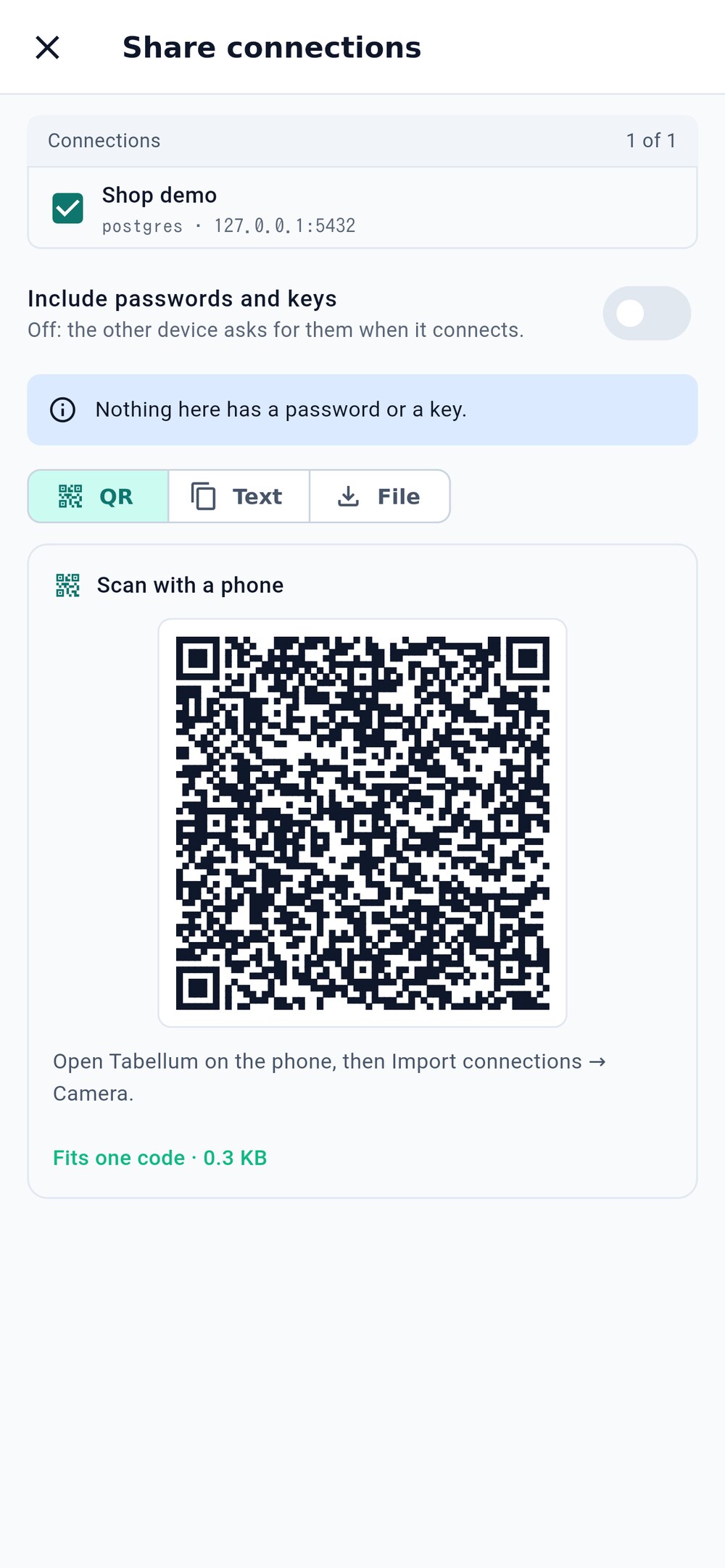
- Pick the connections; their tunnels come along
- Passwords and keys, encrypted, only if you ask
- Show it as a QR code, a text, or a file
Tick what to send 1 a connection’s tunnel comes along by itself. Passwords and keys stay on this device unless you turn on Include passwords and keys 2 and type a passphrase twice, at least 6 characters. Then show it as a QR code, a text to copy, or a file 3.
To receive, choose Import connections…. On QR code, point the camera at the code, or choose a photo or screenshot of it with Choose a photo instead. Paste and File take the code as text. Tabellum asks for the camera and the photos only here.
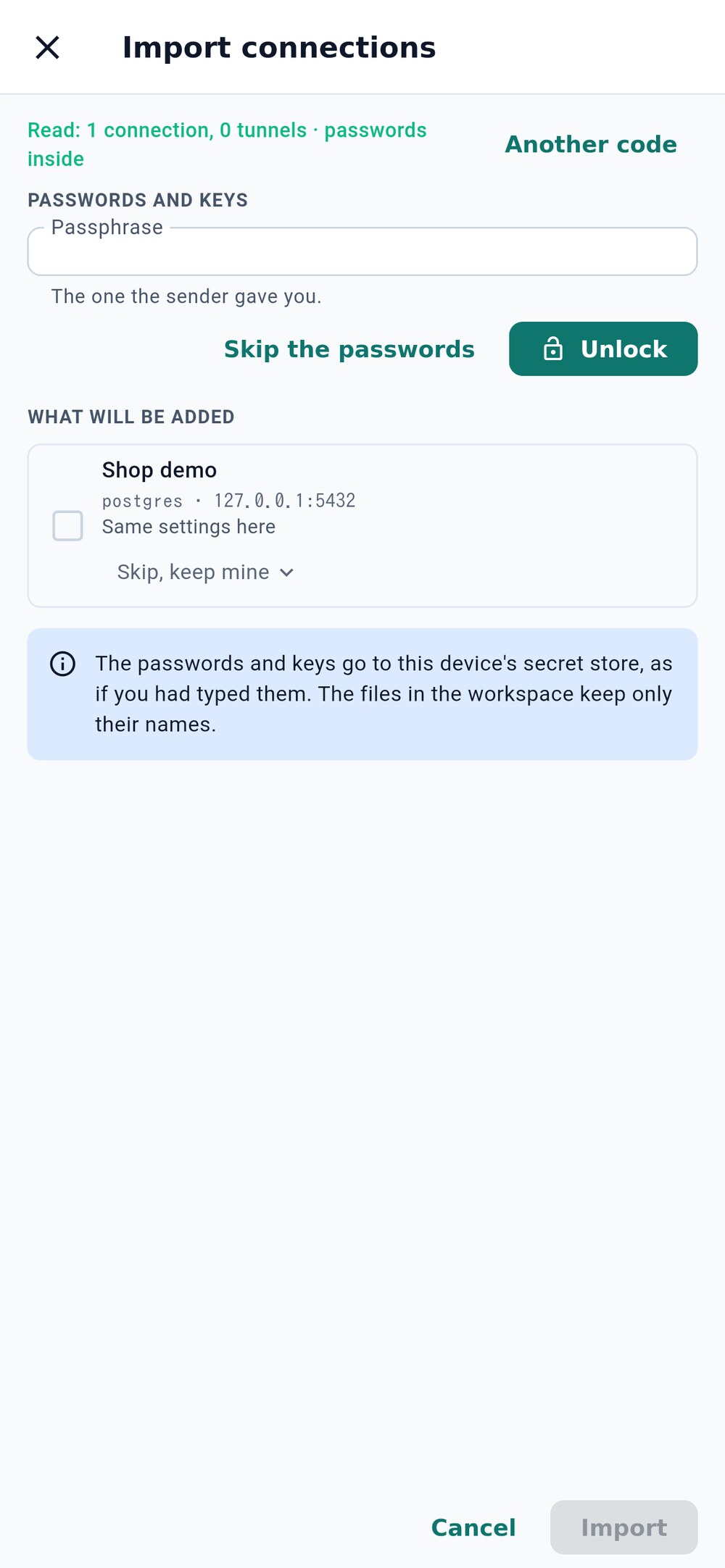
- The passphrase you were given
- What is added, and what to do with a name taken here
If the code carries passwords, type the passphrase 1 and choose Unlock Skip the passwords leaves them to type later. The list 2 shows what will be added, and asks what to do when a connection of that name is already on the phone. Nothing is written until Import.